
AirDroid Cast
Easy to Share World of Worldcraft with Friends and Families on TV
100,000+ people have signed up.

Playing World of Warcraft (WoW) on the go has become a dream for many players who want a more portable, relaxed way to enjoy Azeroth. So — can you play World of Warcraft on Steam Deck? Yes, you can. And with the right setup, the experience is far better than most players expect.
In this guide, you’ll learn exactly how to run WoW on Steam Deck, which installation method is safest, how to configure controls, how to achieve stable performance, and how to solve common compatibility issues. If you're looking for a complete, easy-to-follow guide with practical insights — this is it.

Understanding how to play World of Warcraft on Steam Deck requires a quick look under the hood. The Steam Deck runs on SteamOS, which is based on Linux. Since WoW is a Windows-exclusive title, your device acts as a translator.
To bridge the gap between these two operating systems, we rely on a compatibility tool called Proton (based on Wine). Think of Proton as a highly skilled interpreter that translates Windows instructions into a language the Steam Deck understands. To get started, you need three components working in harmony:
Because this is a "workaround" rather than an official release, stability and account safety are top priorities. Let's look at the best ways to install it.
There are two primary installation paths. Both work, but they differ significantly in difficulty, stability, and long-term maintenance.
When asking "how do I install WoW on Steam Deck," the community consensus points to Lutris as the safest and most stable method. Lutris is an open-source game manager that automates the complex configuration of Wine environments.
Using the Flatpak version of Lutris provides a distinct security advantage: Environment Isolation. It creates a "sandbox" for Battle.net, separating it from your core SteamOS files. This reduces the risk of system conflicts and makes removing the game clean and easy.

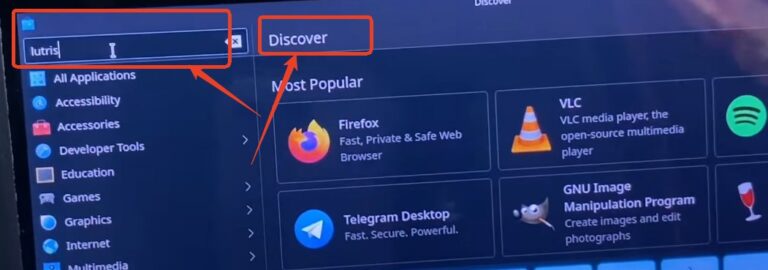
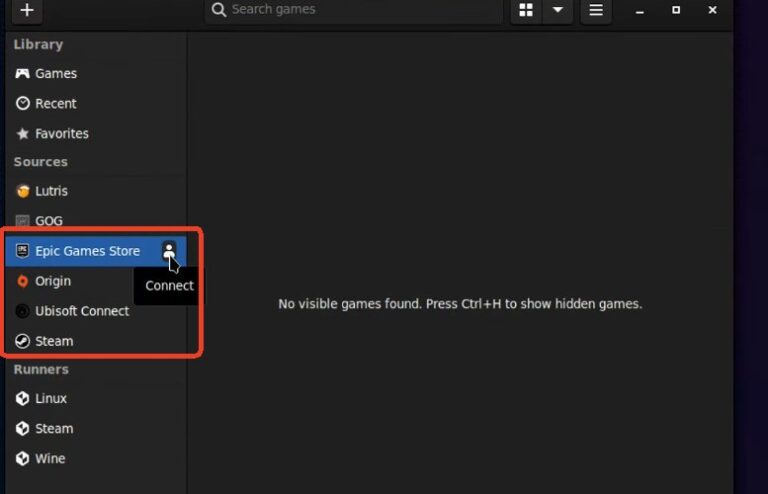
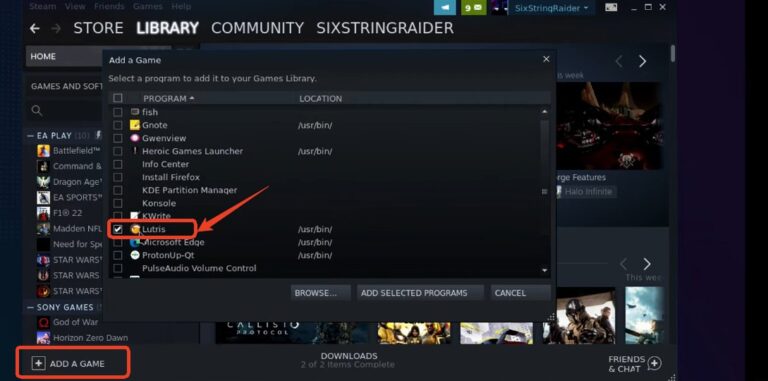
Easy to Share World of Worldcraft with Friends and Families on TV
If you prefer not to use third-party managers, you can manually add the World of Warcraft on Steam Deck setup directly through the Steam interface. However, be warned: this method is more technical and prone to pathing errors.
This involves downloading the Battle.net-setup.exe and adding it as a "Non-Steam Game." You must then go into the game's properties and force the use of a compatibility tool, specifically Proton Experimental or Proton-GE (Glorious Eggroll), which often contains specific patches for non-Steam games.
The biggest headache with this method is the file path. Once Battle.net is installed, the Steam shortcut will still point to the installer, not the launcher.

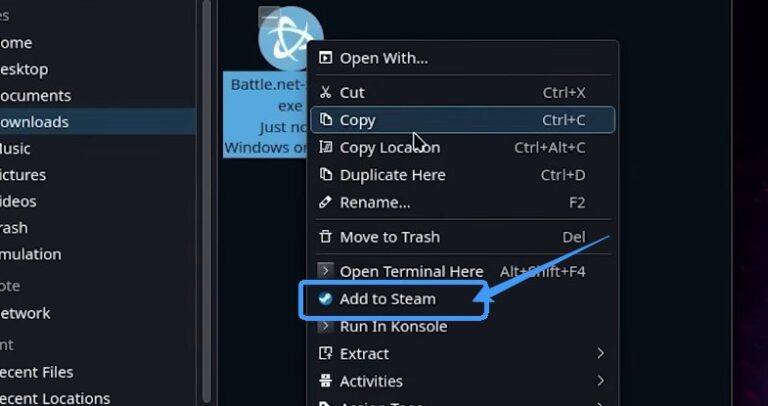
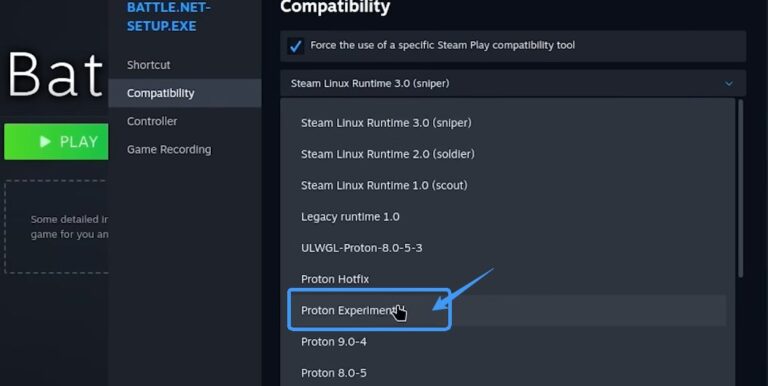
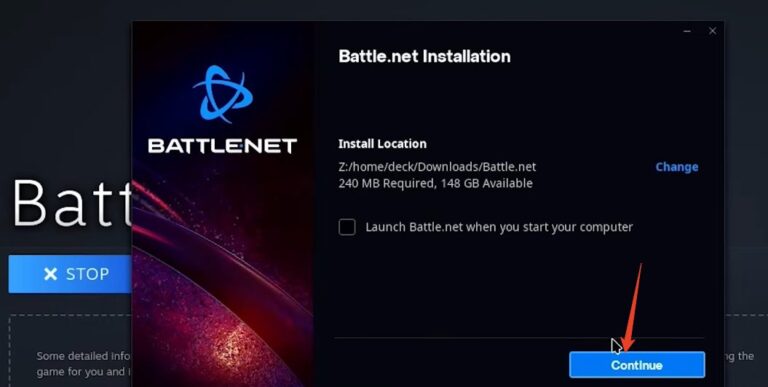
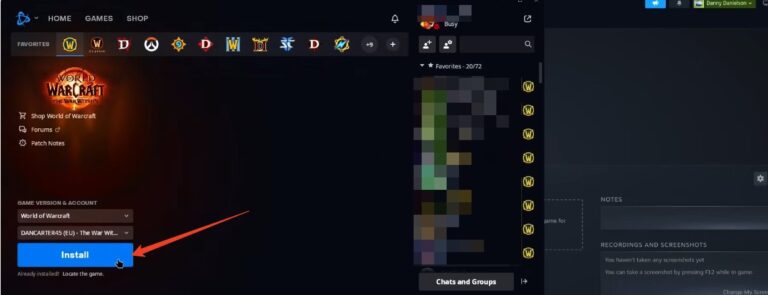
To have a better installation, you can watch this YouTube tutorial to follow.
With WoW installed, these tweaks will transform your experience from “it works” to “it’s fantastic.”
1. Storage: Location Matters
Where you install WoW significantly impacts loading times and stuttering.
2. Performance & Graphics Settings
The Steam Deck’s APU is powerful but has limits. Chasing 60 FPS everywhere will drain your battery and cause frame drops. Aim for a smooth, consistent experience instead.
To set the Refresh Rate, just go to Steam Deck’s Quick Settings Menu (… button), set the Refresh Rate to 40Hz. Then, in WoW’s System -> Advanced settings, set the Max Foreground FPS to 40. This creates perfectly frame-paced, smooth gameplay that feels great and saves power.
Even with a perfect setup, maintaining World of Warcraft on Steam Deck requires some knowledge of common issues. Since the game updates frequently, compatibility can occasionally break.
If a WoW update or Battle.net update suddenly prevents the game from launching, don't panic. The quickest fix is usually swapping your Proton version. If you are on Proton Experimental, try switching to a specific version of Proton-GE, or vice versa. These compatibility issues are usually resolved by the community within days.
Communication is the hardest part of the handheld MMORPG experience.
Steam + X to bring up the keyboard instantly.While the Steam Deck supports SD cards, WoW is asset-heavy. Installing it on the internal NVMe SSD drastically reduces loading times, especially when portaling between zones. If you must use an SD card, ensure it is an A2-rated high-speed card to minimize stuttering.
So, can you play World of Warcraft on Steam Deck? Absolutely. While it requires an initial investment of time to set up Lutris and configure ConsolePort, the payoff is incredible. The ability to grind reputation, farm herbs, or level alts from the comfort of your bed transforms the way you engage with the game.
Ready to start? Boot up your Steam Deck, switch to Desktop Mode, and download Lutris today. Azeroth awaits!







Leave a Reply.