Can you play Rust on Mac? If you had asked this question five years ago, the answer would have been a hesitant "yes, via Boot Camp." But the landscape has shifted dramatically. As we settle into 2025, the transition from Intel-based Macs to Apple Silicon (M1, M2, M3, and M4) is complete, and the answer is now a resounding yes—but with specific caveats.
In this guide, you’ll learn exactly how to play Rust macOS with two effective methods.
Method 1: How to Run Rust Natively on Mac via Steam in 2025
This guide walks you through the complete process of running Rust natively on a Mac via Steam in 2025, including hardware requirements, installation steps, performance optimizations, and critical safety precautions to avoid bans.
1. Hardware Preparation & Environment Check
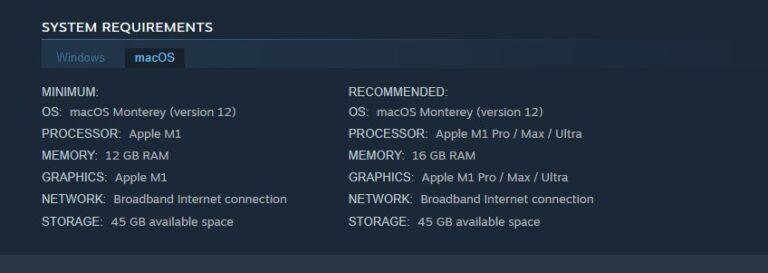
Before downloading the game, make sure your Mac meets the recommended specifications below. Otherwise, even if Rust launches successfully, you may experience severe performance issues (under 20 FPS).
Minimum
- OS: macOS Monterey (version 12)
- Processor: Apple M1
- Memory: 12 GB RAM
- Graphics: Apple M1
- Network: Broadband Internet connection
- Storage: 45 GB available space
Recommended
- OS: macOS Monterey (version 12)
- Processor: Apple M1 Pro / Max / Ultra
- Memory: 16 GB RAM
- Graphics: Apple M1 Pro / Max / Ultra
- Network: Broadband Internet connection
- Storage: 45 GB available space
2. Installation & First Launch
- Step 1. Download and install the native macOS version of Steam.
- Step 2. Search for Rust in your Steam library and download it directly.
- Step 3. Rust will automatically install the macOS-compatible Easy Anti-Cheat (EAC) component.
Note: EAC now supports ARM architecture natively, so no additional configuration is required to join official servers.
3. Core Optimization — Fixing the “15-Minute FPS Drop” Bug
This is the most common issue for Mac players: after running smoothly for a short time, FPS suddenly drops from 60+ to single digits.
The root cause is a cache management flaw in Unity on macOS. Below is steps to automated fix (Highly Recommended).
- Step 1. Open Automator (built into macOS).
- Step 2. Create a new Application.
- Step 3. Add Run Shell Script, and paste the following command: rm -rf $TMPDIR/../C/com.Facepunch-Studios-LTD.Rust/.
- Step 4. Add Launch Application, then select Steam (or launch Rust directly using: open steam://rungameid/252490).
- Step 5. Save the application to your desktop and assign it the Rust icon.
From now on, launch Rust using this script. It automatically clears corrupted cache files before each session, completely eliminating the sudden FPS drops.
4. Recommended In-Game Settings
For stable, competitive-level performance, adjust the following settings before joining a server:
- Graphics Quality: 1–2
- Mesh Quality: 0.3–0.5
- Shadow Quality: 0 (Off)
Shadows are one of the biggest performance killers on macOS.
Disable Experimental Features
Go to Options → Experimental and turn off Automatic Processor Affinity. This prevents macOS from assigning Rust to low-power efficiency cores (E-cores) on Apple Silicon, helping maintain higher and more consistent FPS.
Resolution Scaling
If you’re using a MacBook Air, lowering the resolution to 1440×900 or 1280×800 can significantly improve frame stability.
5. Critical Safety Risks (Avoiding Bans)
Mac users often risk triggering Easy Anti-Cheat violations while optimizing performance. A Game Ban is permanent and almost never appealable.
What You Must Avoid
Do NOT use Karabiner-Elements
Many players use it to remap mouse buttons, but because it rewrites low-level input events, EAC frequently flags it as a third-party cheat tool.
Be extremely careful with mouse macro software
Official drivers (e.g., Logitech G Hub) are generally safe, but recoil macros, rapid-fire scripts, or automation are strictly forbidden. EAC’s behavior analysis on macOS is particularly aggressive.
Never clear cache while the game is running
The cache cleanup described in Phase 3 must be performed only when Rust is closed. Modifying or deleting related files during gameplay can trigger EAC integrity checks, leading to kicks or bans.
Avoid VPNs and network accelerators
Many Rust servers use anti-VPN plugins. Certain Mac network tools may result in automatic blacklisting.
Share Your Rust Gameplay with Friends & Family on TV
Share your gameplay on a big TV screen is great and enjoyable. AirDroid Cast can help you cast the screen from PC/phone to TV, and can also remotely watch together. Take a Look!
Try It Free
Method 2: Playing Rust on Mac via GeForce NOW (Steam Cloud Streaming)
This method allows you to play Rust on macOS through your Steam library using NVIDIA’s cloud infrastructure. It is currently the most stable and hardware-friendly solution for Mac users, especially on Apple Silicon.
1. Account Setup & Steam Library Sync
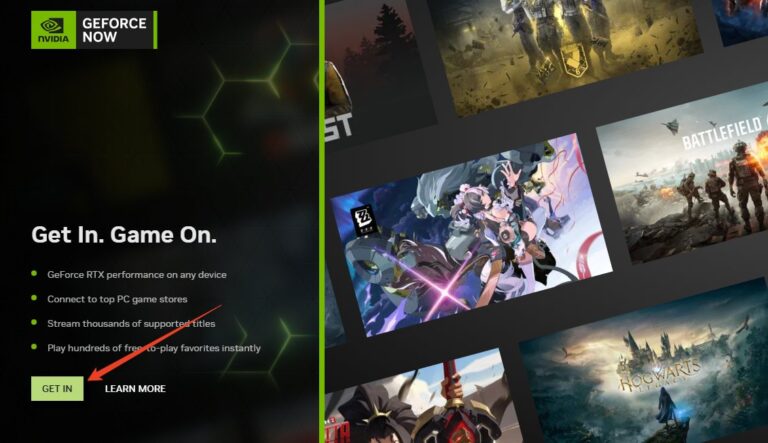
- Step 1. Create a GeForce NOW Account: Visit the official GeForce NOW website and register an account or sign in your account.
Note for users in Mainland China: Rust is not yet deployed on domestic cloud gaming nodes. You will usually need to select a non-Mainland provider (such as U.S., Japan, or Taiwan regions) to access Rust on GFN.
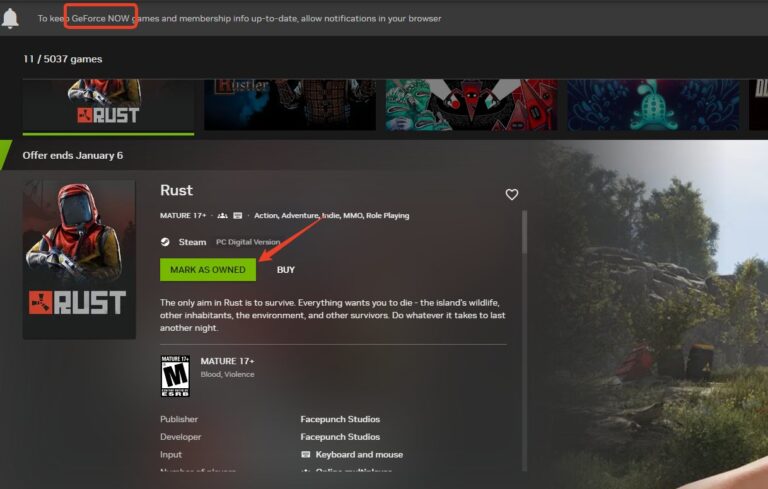
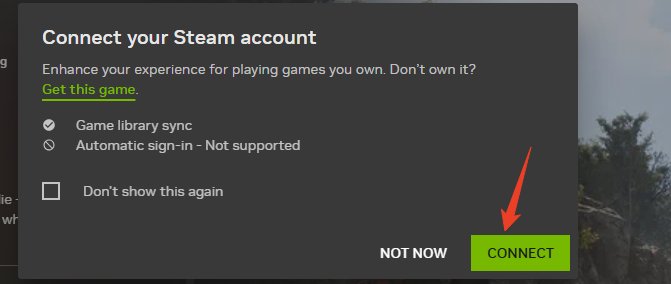
- Step 2. Sync Your Steam Library: In the GFN settings panel, link your Steam account and make sure Rust is already purchased and visible in your Steam library.
- Step 3. Choose the Right Membership Tier for you.
2. Client Installation & Network Optimization
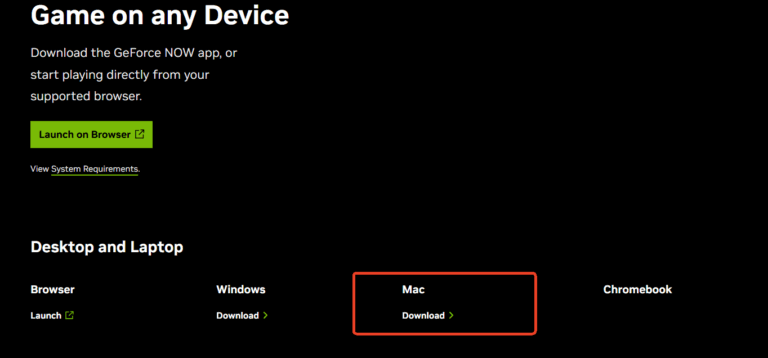
- Step 1. Install the macOS Client (Not Browser):Download and install the GeForce NOW macOS app instead of playing via a browser. The native client offers noticeably lower input latency and more stable frame pacing.
- Step 2. Use a Wired Ethernet Connection:A wired Ethernet connection is mandatory for competitive Rust gameplay. Even with 1 Gbps fiber, Wi-Fi jitter and packet loss can cause rubber-banding and teleporting during combat.
- Step 3. Bandwidth Requirements:
- Minimum: 50 Mbps stable connection
- Recommended for 4K / 120 FPS: 75 Mbps or higher
Consistency matters more than peak speed.
3. Critical In-Game Settings (Latency Control)
- Step 1. Enable NVIDIA Reflex: In Rust’s video or graphics settings, enable: NVIDIA Reflex Low Latency → “On + Boost”, which is essential for cloud gaming. It significantly offsets the input lag introduced by remote rendering and is widely considered a “must-enable” option for GFN Rust players.
- Step 2. Match Streaming Resolution:In the GFN client settings, set the streaming resolution to match your Mac’s native display resolution. Mismatched scaling increases latency and can introduce unnecessary blur or frame pacing issues.
4. Safety Pitfalls & Issue Handling
These are the two most commonly overlooked risks for cloud-based Rust players.
1. Server IP Bans (False VPN Detection)
Risk: Many Rust community servers run anti-VPN plugins. GeForce NOW data center IPs are frequently misidentified as VPNs, causing instant kicks or automatic bans upon joining.
Solution:
- Join the server’s Discord
- Contact an admin
- Provide proof that you are playing via GeForce NOW (a screenshot of the GFN launcher is usually sufficient)
Most admins will whitelist GFN IPs once verified.
2. “Under Maintenance” Status on GFN
Risk: Following late-2025 Easy Anti-Cheat updates, Rust on GFN may periodically appear as “Under Maintenance”. This happens when NVIDIA and Facepunch need to update virtual machine authorization whitelists.
Solution:
- Do not attempt to bypass it using third-party launchers or modified startup parameters
- Forcing a launch in a virtualized environment can easily trigger EAC VM bans
The safest option is to wait for official restoration.
5. Important Notes for Users
Playtime Limits
In some regions, GFN Ultimate plans introduced a 100-hour monthly playtime cap in 2025. Exceeding this limit may result in queues or temporary performance downgrades.
Filters, Overlays & Macros
- Do not enable any unauthorized third-party filters or macro scripts
- Rust developers have confirmed that certain NVIDIA filters may be flagged as cheats
- Cloud environments are far less tolerant than local PCs when it comes to input manipulation
If you have: a stable wired internet connection, and no issue with occasional maintenance downtime, then GeForce NOW Ultimate is currently the best way for Mac users to play Rust.
AirDroid Cast
- Local & Remote Screen Casting(Your Game or Whole Screen)
- Android,iOS,Windows,Mac,TV Screen Mirroring
- Wireless & USB Connection
- Total Control Android & iOS beyond Your Finger
- Mirror Multiple Screen to PC simultaneously
Conclusion
Playing Rust on Mac is no longer a desperate hack; it is a legitimate way to enjoy the game. If you possess an M2 Pro, M3, or M4 device with at least 16GB of RAM, you can enjoy a console-quality experience natively. For everyone else, Cloud Gaming offers a solid lifeline.
However, the ecosystem is fragile. Between the Unity engine quirks and the strictness of EAC, Mac gamers must be more vigilant than their Windows counterparts. Optimize your garbage collection, watch your thermals, and keep your background apps clean. The island is harsh enough—don't let your OS be the reason you get raided.










Leave a Reply.