AirDroid Cast

All-in-one app to screen mirror iPhone, Android, Windows, Mac, and Smart TV

140 Free Trial
Elsa Updated on Dec 26, 2025 147 views

Play Call of Dragons on PC has become a popular search query among strategy gamers—and for good reason. Developed by the same team behind Rise of Kingdoms, Call of Dragons delivers a massive 38.8 million m² seamless open world, vertical 3D terrain, flying legions, and Behemoth capture mechanics that push mobile hardware to its limits.

This guide explains how to play Call of Dragons on PC safely, compares the best available methods, and highlights risks you should not ignore.

Comparison of 3 Methods

MethodPerformanceSafetyMulti-AccountBest Use CaseSupported Devices
Official PC Client⭐⭐⭐⭐⭐⭐⭐⭐⭐⭐Long-term main accountWindows
Google Play Games⭐⭐⭐⭐⭐⭐⭐⭐⭐Secure official gameplayWindows
Android Emulators⭐⭐⭐⭐⭐Farming & multi-accountWindows, Mac

For Windows users, both the official Call of Dragons PC client and Google Play Games on PC are solid choices, offering stable performance and low account risk. For macOS users, Android emulators are currently the most practical option, as no official Mac version is available.

However, emulator users should always follow the game’s Terms of Service and avoid automation or cheating tools. Ultimately, the best setup depends on your device and how you prefer to play.

#1: Official Call of Dragons PC Client (Most Stable Option)

👉 Best for: Players who prioritize performance, stability, and long-term account safety.

call of dragons pc client

The official Call of Dragons PC client provided by Farlight Games is widely considered the best overall way to play Call of Dragons on PC.

Unlike emulators, this version runs on a native Windows x86 architecture and uses DirectX 11, allowing the game to access your GPU directly without Android virtualization. As a result, it delivers excellent performance with significantly lower CPU usage and far greater stability during large-scale battles.

Many Call of Dragons players invest hundreds of hours into a single main account. For them, the primary fear is not performance—it’s account loss, crashes during large wars, or unexpected compatibility issues. The native PC client eliminates Android virtualization entirely, allowing the game to run directly on Windows with optimal hardware access.

This solution specifically addresses:

  • Performance drops during massive alliance battles
  • Emulator compatibility issues after game updates
  • Account security concerns related to third-party environments

However, the official client intentionally limits advanced features such as multi-instance support and deep control customization, making it less appealing for players who manage multiple accounts.

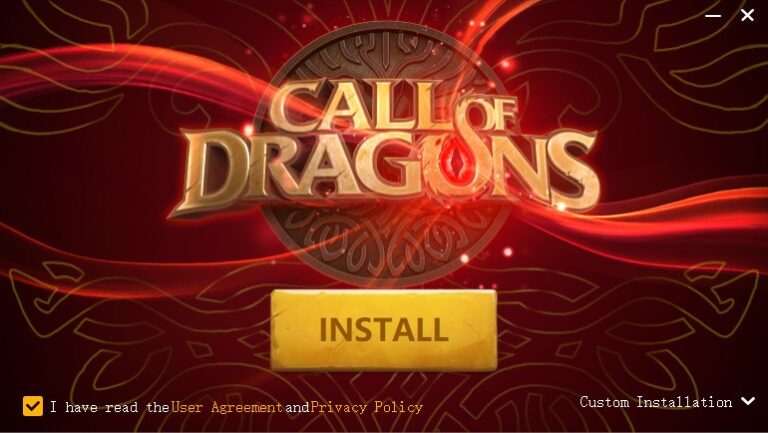
How to Download the PC Client

  1. Step 1.
    Download the Official PC Client
  2. Go to the official Call of Dragons website or Epic Games Store and download the Windows PC version. Make sure you are downloading from an official source to avoid modified installers.
  3. download pc client
  1. Step 2.
    Install and Launch the Client
  2. Run the installer and complete the setup. The client will install the game along with its required components, including the built-in anti-cheat system.
  3. install call of dragons
  1. Step 3.
    Log In Using Farlight Pass
  2. To keep your mobile progress:open Call of Dragons on your phone,bind your account to Farlight Pass (email login),use the same email to log in on PC.
  3. ⚠️ Do not create a new account on PC if you already have mobile progress.
  1. Step 4.
    Adjust Graphics and Performance Settings
  2. Inside the PC client: set graphics to High or Ultra (based on GPU), enable higher frame rate options, and adjust resolution to match your monitor.
  1. Step 5.
    Customize Controls (Optional)
  2. The official client uses optimized mouse and keyboard controls by default. You can fine-tune camera sensitivity and shortcuts in the settings menu.

Share Your Call of Dragons with Friends & Family on TV

Share your gameplay on a big TV screen is great and enjoyable. AirDroid Cast can help you cast the screen from PC to TV, and can also remotely watch together. Take a Look!

Try It Free

#2: Google Play Games on PC 

👉 Best for: Players who want an official and secure PC experience without relying on third-party tools.
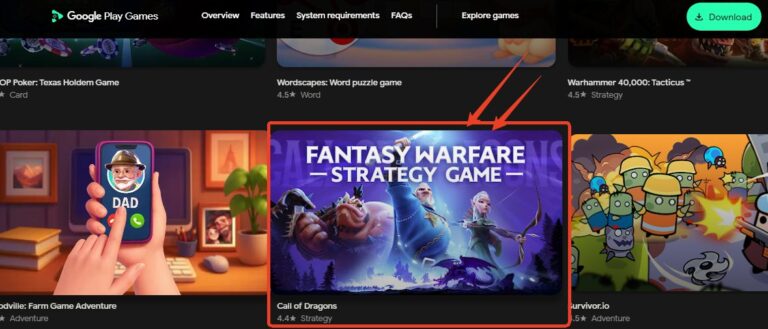
call of dragons on google play games pc

Another official option to play Call of Dragons on PC is Google Play Games on PC, Google’s own desktop gaming platform.

This solution runs the Android version of the game inside an official, highly controlled virtualization environment. Because it’s part of Google’s ecosystem, it offers a high level of system trust and data security, along with seamless Google Play account synchronization.

It exists to solve a different problem: Android ecosystem continuity. Many players started Call of Dragons on Android and built their progress around:

  • Google Play account login
  • Google Play Points and achievements
  • Familiar Android UI behavior

For these users, switching to a native PC client feels like leaving the Android ecosystem entirely. Google Play Games bridges this gap by offering an official, Google-controlled Android runtime on PC.

The platform trades flexibility for safety. Advanced key mapping, multi-instance farming, and heavy customization are not its goals.
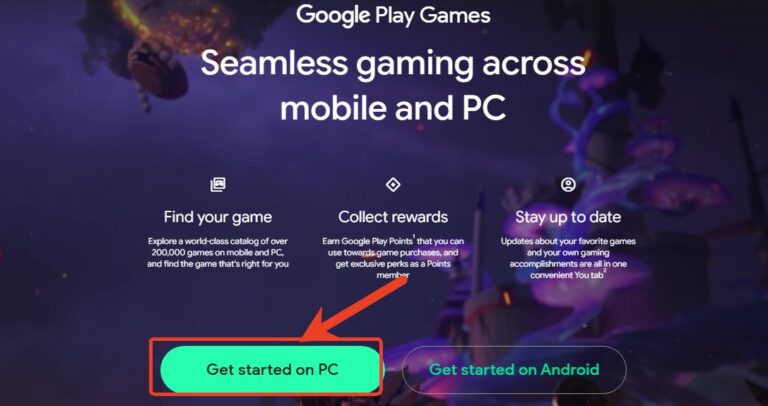
How to Play Call of Dragons with Google Play Games

  1. Step 1.
    Check System Requirements
  2. Before installation, ensure: Windows 10 (version 2004 or later),SSD storage,At least a quad-core CPU, Hardware virtualization enabled (Intel VT-x or AMD-V).
  1. Step 2.
    Enable Hardware Virtualization (VT)
  2. Restart your PC, enter BIOS/UEFI, and enable:Intel Virtualization Technology (VT-x) or AMD-V / SVM Mode, then save changes and reboot.
  1. Step 3.
    Install Google Play Games on PC
  2. Download the official installer from Google and complete the setup.
  3. download google play games
  1. Step 4.
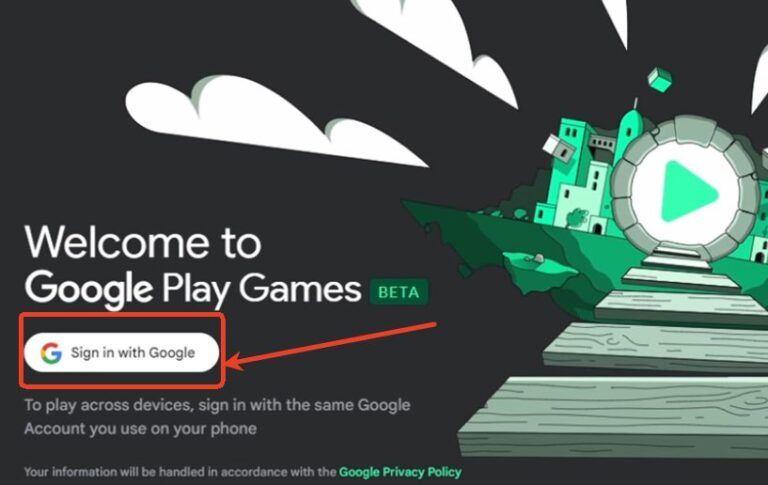
    Sign In with Your Google Account
  2. Log in using the same Google account you use on your Android device to sync progress automatically.
  3. sign in with google
  1. Step 5.
    Download Call of Dragons
  2. Search for Call of Dragons in the Google Play Games library and install it like a regular Android app.
  1. Step 6.
    Adjust In-Game Settings
  2. Set performance options to prioritize frame rate for smoother large-scale battles.

#3: Android Emulators (Best for Multi-Account Players)

👉 Best for: Experienced players who understand emulator configuration and are willing to accept higher risk for efficiency.
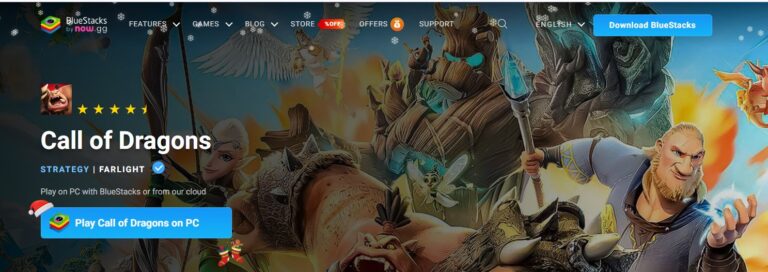
call of dragons on emulators

Third-party Android emulators such as BlueStacks, MuMu Player, and LDPlayer remain popular among advanced players who want maximum flexibility.

Despite the risks, Android emulators continue to thrive because they solve a problem that official solutions intentionally avoid: scale.

In competitive Call of Dragons environments, resource production often determines long-term success. High-efficiency players rely on multiple farm accounts to:

  • Funnel resources to a main account
  • Accelerate building and research
  • Support alliance logistics

Android emulators provide:

  • Multi-instance gameplay on a single PC
  • Advanced key mapping for faster management
  • Instance managers for large-scale farming setups

No official PC solution currently supports multi-account operations at scale. As long as farming remains a core SLG strategy, emulators will continue to be used—despite their risks.

pic cast pop 01

AirDroid Cast

  • Local & Remote Screen Casting(Your Game or Whole Screen)
  • Android,iOS,Windows,Mac,TV Screen Mirroring
  • Wireless & USB Connection
  • Total Control Android & iOS beyond Your Finger
  • Mirror Multiple Screen to PC simultaneously

Frequently Asked Questions (FAQ)

Is playing Call of Dragons on PC considered cheating?
No, playing on PC is fully supported by the developers (Farlight Games). However, while using emulators is allowed, using "automated scripts" or "botting software" to gather resources automatically is strictly prohibited and will result in a permanent ban.
Can I play on PC if I started on an iPhone?
Yes. Call of Dragons supports full cross-platform progression. You must link your iOS account to a Farlight Pass (email/password) inside the mobile app first. You can then use those credentials to log in on any PC client.
What are the minimum system requirements for the PC Client?
To run the game smoothly, you generally need Windows 10 (64-bit), an Intel Core i3 or equivalent, 8GB of RAM, and a dedicated graphics card (NVIDIA GTX 1050 or better is recommended for high settings).
Why is my emulator running slowly?
This is almost always due to Virtualization (VT) being disabled in your BIOS. Another common cause is not allocating enough CPU cores (at least 2) and RAM (at least 4GB) to the emulator instance in its settings menu.
Can I play multiple accounts on the Official PC Client?
Natively, no. The official client only supports one instance. To play multiple accounts simultaneously on one screen, you must use an Android Emulator like BlueStacks or LDPlayer.

Conclusion

Playing Call of Dragons on PC dramatically enhances the strategic and visual scope of the game. Always prioritize securely binding your account and ensuring your PC meets the technical requirements before diving in. Embrace the power of the desktop to command your dragons, beasts, and legions with unprecedented clarity and control.

Click a star to vote
148 views
Elsa
Elsa
Elsa has worked on a number of iOS & Android solutions, she can always find her way around almost any application. She is an accomplished, skilled and versatile writer with more than 7 years of technical article writing experience.
Discussion

Leave a Reply.

Your email address will not be published. Required fields are marked*

Airdroid cast logo
AirDroid Cast
Enjoy More on a Big Screen
Download


