
With the mobile version removed from app stores due to outdated technology and engine limitations, many fans are seeking ways to enjoy this classic turn-based RPG again.
Angry Birds Epic on PC not only provides a larger screen and better graphics but also delivers smoother performance and precise keyboard-mouse control, making it ideal for reliving the game’s nostalgic charm safely.
Challenges of Running Angry Birds Epic on PC
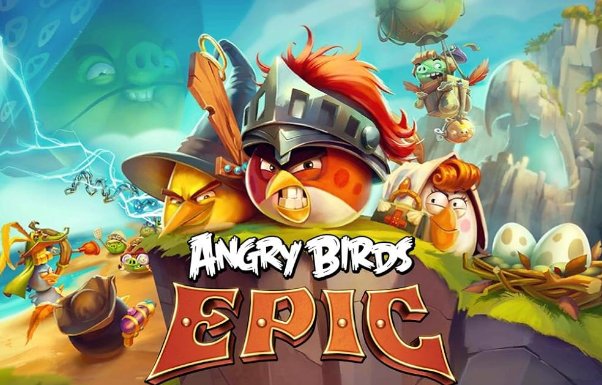
Running a mobile game like ABE on PC involves two major challenges:
- Environment dependency: Android apps cannot run natively on Windows or macOS. You need an Android emulator or Windows Subsystem for Android (WSA) to create a compatible virtual environment.
- APK source verification: Since the game is no longer on official stores, downloading APK files from third-party sources exposes users to potential malware, data theft, and privacy risks.
Understanding these obstacles is essential before attempting to run ABE on your PC.
Method 1: Using a Professional Android Emulator (Best Performance)
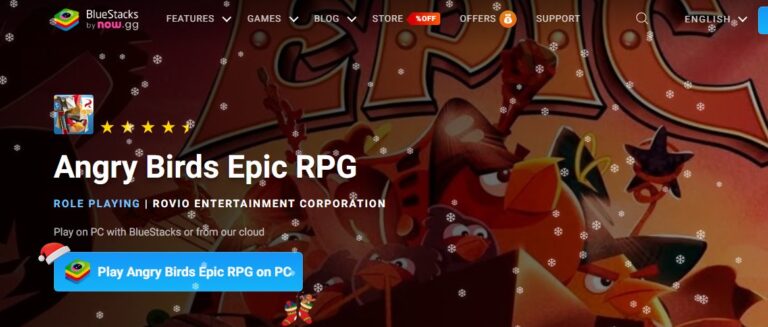
Since Angry Birds Epic is an Android game and no longer available on official app stores, using an Android emulator is currently the most reliable way to run it on a Windows PC or Mac. An emulator creates a virtual Android environment on your computer, allowing the game to run smoothly on a larger screen.
Why Emulators are the Top Choice
Emulators like BlueStacks Angry Birds Epic setups are popular because they are optimized specifically for gaming. Unlike general-purpose developer tools, they offer keymapping, high frame rates, and stability.
Recommended Emulators
1. BlueStacks 5 (The Gold Standard):
- Pros: widely considered the most compatible emulator. It features a "Real-Time Translation" tool and massive game controls customization.
- Requirements: Windows 7/macOS 11 or higher, 4GB RAM, and 10GB disk space.
- Performance: It manages memory efficiently, often using significantly less RAM than native Windows tools.
2. Nox Player (For Speed):
- Pros: Known for being lightweight and fast. It supports "Multi-Instance," allowing you to run multiple games at once.
- Best For: Users with slightly older hardware who need a snappy interface.
Critical Setup Step: Enable Hardware Virtualization
To ensure your Angry Birds Epic emulator runs without lag, you must enable Hardware Virtualization (VT-x for Intel or AMD-V for AMD) in your computer’s BIOS/UEFI settings.
- Without VT: The emulator runs in software mode, which is incredibly slow and prone to crashing.
- With VT: The emulator accesses your CPU directly, ensuring smooth 60 FPS gameplay.
How to use emulators to play Angry Birds Epic?
1. Download and Install BlueStacks
- Step 1. Visit the official BlueStacks download page and download the installer.
- Step 2. Run the installer and allow changes if prompted.
- Step 3. Complete the setup process and launch BlueStacks App Player.
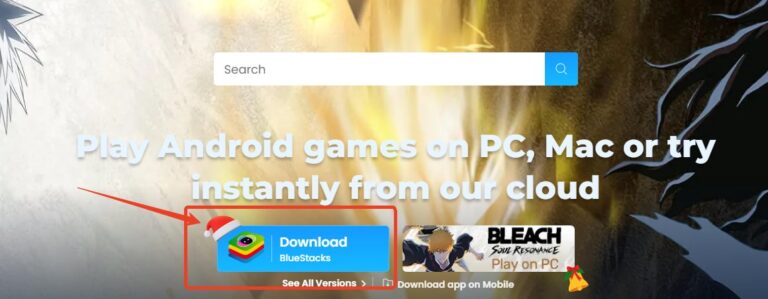
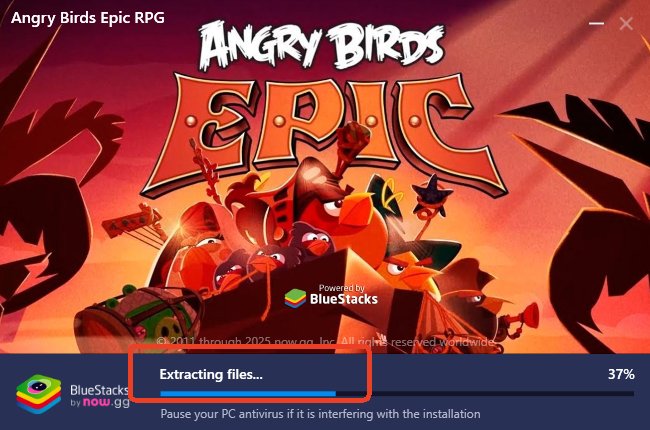
Tip: Minimum recommended specifications include at least 4 GB of RAM and enough disk space for Android apps.
2. Search for Angry Birds Epic Within BlueStacks
- Step 1. Complete Google sign-in, and use the BlueStacks search bar (usually at the top right) and type “Angry Birds Epic RPG.”
- Step 2. If the game appears in search results, click it to install directly. Once installed, the game icon will appear on the BlueStacks home screen.
This is the simplest and most official method promoted on the BlueStacks site.
3. Alternative Installation (If Direct Search Doesn’t Work)
Because Angry Birds Epic was officially discontinued and removed from app stores, some users may find that it doesn’t show up in BlueStacks search at all.
In that case:
- Step 1. Download a legitimate Angry Birds Epic APK from a trusted Android archive site.
- Step 2. Then drag and drop the APK file into the BlueStacks window to install it manually.
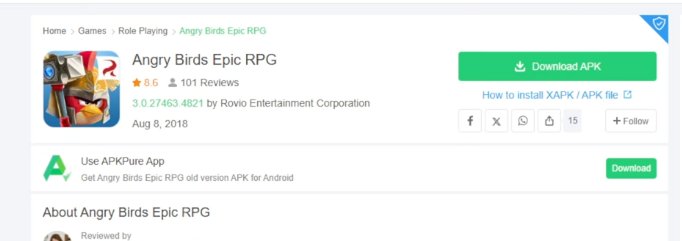
Note: This alternative may be necessary when the game is no longer available through BlueStacks’ store or search results.
4. Launch and Play
Once installed, simply click the Angry Birds Epic RPG icon in BlueStacks to launch the game.
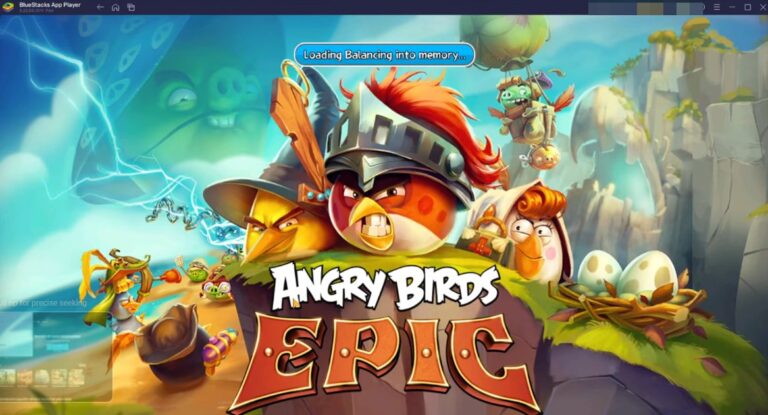
- Step 1. If prompted with permissions or Google sign-in dialogs, follow the on-screen instructions.
- Step 2. Adjust audio settings if the game sound is loud.
This YouTube Tutorial may be helpful for you if you have problems when downloading.
Share Your Angry Birds Epic Gameplay with Friends & Family on TV
Share your perfect gameplay on a big TV screen is great and enjoyable. AirDroid Cast can help you cast the screen from PC to TV, and can also remotely watch together. Take a Look!
FAQ about Playing Angry Birds Epic
Conclusion
Playing Angry Birds Epic on PC is possible and can significantly enhance your gaming experience. The safest and most practical method is using a professional Android emulator, ensuring smooth gameplay and security.
By choosing the right approach, enabling virtualization, and keeping security in mind, you can safely relive this classic RPG on your computer—enjoying nostalgia, better performance, and a larger screen experience.







Leave a Reply.