Mastering Samsung OEMConfig with AirDroid Business: Advanced Policy Configurations Made Simple
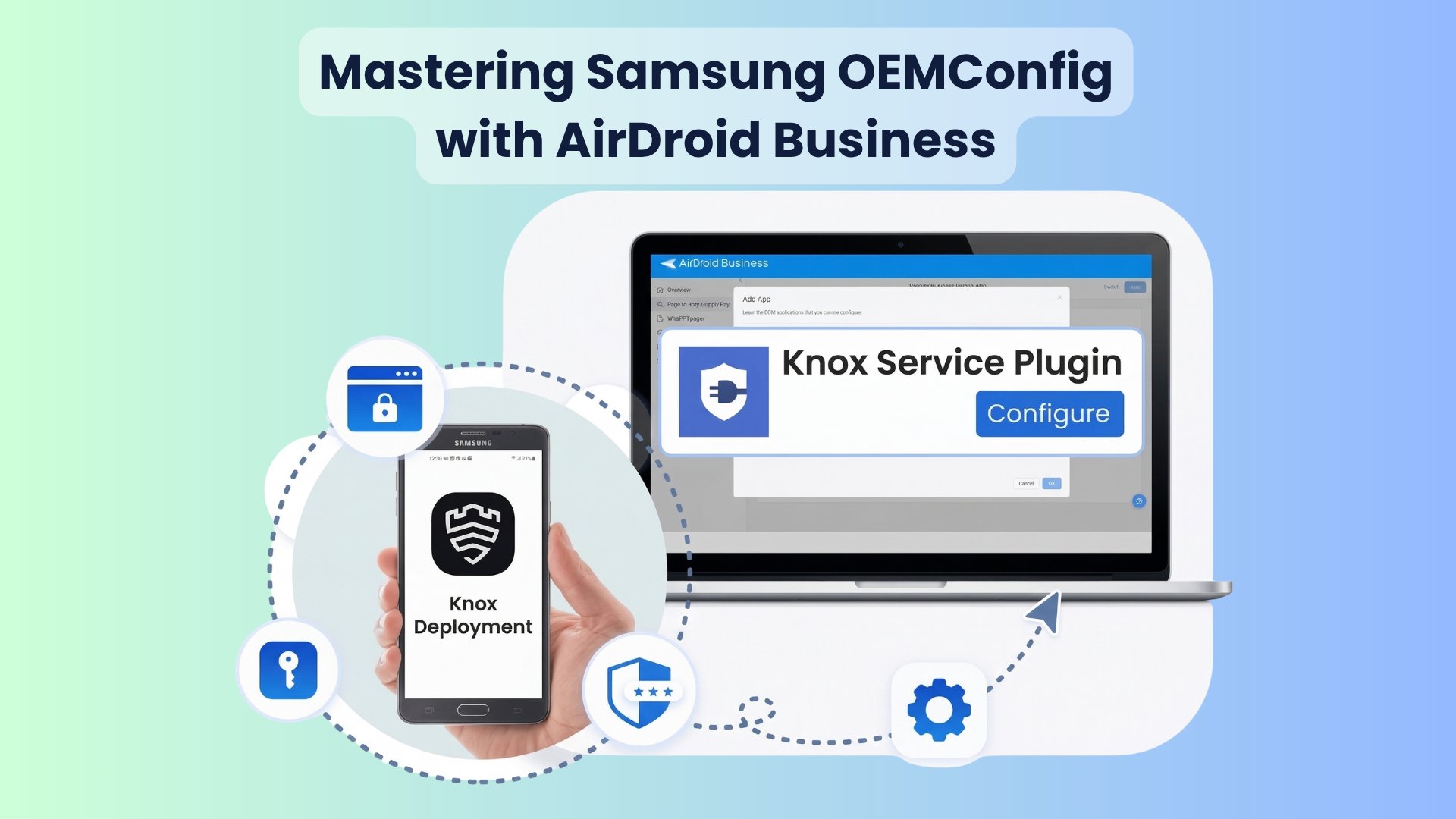
In the enterprise mobile management field, standard Android MDM strategies typically meet about 80% of basic requirements. However, as the deployment scale of Samsung devices expands, IT administrators often encounter bottlenecks such as "vendor feature compatibility," "inaccessibility to deep settings," and "configuration drift," leading to soaring on-site maintenance costs. The key to solving this challenge lies in Samsung OEMConfig.
Samsung OEMConfig is a mechanism based on the Android standard framework designed to deliver vendor-specific advanced settings through managed configuration.
Through AirDroid Business, administrators can combine these deep configurations with Android Kiosk Mode, automated workflows, and unattended remote control to build a scalable, reusable, and auditable closed-loop delivery process.
This guide will provide a detailed analysis of how to leverage this combination to implement advanced policy configurations.
Part 1: What Is Samsung OEMConfig—and When Do You Actually Need It?
1OEMConfig in One Minute: The Standard Way to Apply OEM-Specific Settings
OEMConfig for Android is a standardized framework introduced by Google that allows hardware manufacturers (OEMs) to directly expose their unique hardware and software features to the EMM/MDM platform without requiring MDM manufacturers to perform cumbersome secondary development. For Samsung, this mechanism is primarily implemented through the Samsung Knox Service Plugin (KSP).
Managed settings configured by IT administrators in the AirDroid Business console are distributed to the KSP application on the device via the Samsung OEMConfig protocol, which then calls the underlying Knox API to execute the configuration.
This approach ensures that administrators can use the latest features released by Samsung as soon as possible, such as advanced DeX controls or specific physical button remapping.
2Signs You’ve Outgrown Standard Android Policies
The following signs indicate that you need to implement advanced policy configurations:
Configuration drift: Devices of the same model behave inconsistently after applying the same MDM policy.
Reliance on manual operation: Field staff still need to manually enable specific functions (such as high-sensitivity touch) through the "Settings" menu.
Difficulty in scaling and reproducing: Each new device requires fine-tuning by "experienced engineers."
Manpower gaps: You find yourself investing significant manpower to address configuration blind spots that policy tools cannot cover.
- SymptomRoot CauseOEMConfig Solution
- Users bypass supervision through “Safe Mode”Standard policies lack low-level boot controlDisable “Safe Mode boot” at the Knox level
- The navigation bar cannot be completely hidden in Kiosk modeConflict with standard Android APIsEnforce persistent UI locking through KSP
- Unable to silently update system time in the backgroundLack of system-level time synchronisation permissionsForce enable network automatic time synchronisation and disable manual modification
AirDroid Business - Unlock Advanced Management
Leverage Samsung OEMConfig with AirDroid Business to access advanced settings and optimize your device management strategy.
Part 2: Samsung OEMConfig in AirDroid Business: Prerequisites and Setup (Without the Usual Pitfalls)
1Prerequisite #1 — Install the Correct OEMConfig App (Otherwise Nothing Applies)
The primary prerequisite for configuring Samsung OEMConfig MDM in AirDroid Business is that the device must have the corresponding OEM application, namely the Knox Service Plugin (KSP), installed. If this application is missing from the device, any OEM policies issued by the console will not take effect.
Verification Checklist:
Device Registration: Ensure the device is registered via Android Enterprise's Device Owner (DO) mode.
Application Deployment: Pre-install KSP on all Samsung devices via the Managed Google Play Store or your organization's app library.
Version Verification: The device must be running Android 9.0 (Knox 3.2.1) or later for full feature support.
2Step-by-Step — Create and Apply an OEMConfig Profile (Template → Group → Devices)
AirDroid Business employs a "template-based" approach for large-scale deployment:
Creating a Template:Go to Policy & Kiosk > Policy & Kiosk Config Files, create a new policy file, and click the [OEMConfig] tab.
Adding Applications: Select the Knox Service Plugin (KSP). You will then see a multi-layered nested configuration architecture, covering firewall, VPN, and DeX customization.
Group Encirclement: It is recommended to first verify the configuration effect in the "Test Group" and apply it to the production group in batches only after confirming that it is correct.
3How OEMConfig Fits with Policy vs Kiosk (Avoiding Confusion)
To avoid configuration conflicts, administrators should clearly define the responsibilities of each layer:
OEMConfig (lower layer): Responsible for "vendor features," such as key remapping and advanced network configuration.
Policy (middle layer): Responsible for "system compliance restrictions," such as disabling developer mode or USB debugging.
Kiosk (top layer): Responsible for "front-end interaction," locking a single business application and hiding the navigation bar.
Part 3: The Winning Stack: OEMConfig + Policy + Kiosk for Samsung Fleet Hardening
1Policy Hardening: Lock Down Risky Settings at the System Level
To effectively lock down Android for business, high-risk system entry points must be secured. In the AirDroid Business policy, administrators should prioritize configuring the following:
Disable developer mode and USB debugging: Prevent the extraction of corporate data or the sideloading of unauthorized applications via ADB command line.
Disable installation of apps from unknown sources: Ensure that only trusted apps from managed app stores can be installed.
Restrict network sharing: Disable Bluetooth hotspots and Wi-Fi sharing to prevent data leaks.
2Kiosk Mode as the Business Interface: Single-App or Multi-App, Plus Website Allowlist
The value of Android Kiosk Mode lies in "interface standardization."
Single-App Kiosk: The device always runs a single business app and automatically restarts after a crash or reboot.
Website Allowlist: By combining the Kiosk browser with a website allowlist, users are restricted to specific business domains (such as ERP or map systems), preventing access to irrelevant websites.
3Governance: Roles, Groups, and Change Control to Prevent Policy Drift
To prevent policy drift, AirDroid Business offers multi-dimensional governance tools:
Membership and Permissions: Custom Roles allow only core IT personnel to edit OEMConfig templates.
Grouping and Isolation: Device groups are created by region or business line to ensure precise policy packages are delivered for different scenarios (e.g., truck drivers vs. warehouse staff).
AirDroid Business - Simplify Policy Management
Combine OEMConfig with AirDroid Business for a seamless policy management experience. Enhance security and efficiency across your fleet.
Part 4: Operational Excellence: Alerts, Workflows, and Unattended Remote Support for OEMConfig Deployments
1Monitoring Signals That Catch Configuration Problems Early
Device Monitoring Alerts (MDM) are not just about displaying data; they are a proactive tool for maintenance. Administrators should pay close attention to the following "abnormal signals":
Kiosk Status Abnormalities: If a device abnormally exits Kiosk mode, the system should issue an immediate alert.
Peripheral Connection Status: For digital signage, changes in the External HDMI status are crucial for locating physical cable faults.
Hardware Health: Monitor battery temperature and storage space to prevent device crashes due to hardware overload.
2Automated Workflows: From Alert to Action (Reboot, Switch Profile, Open App to Foreground)
Leveraging the automation workflow MDM, self-healing without human intervention can be achieved:
Self-healing script: When an app crash is detected, automatically execute "open app to foreground" or "reboot device".
Configuration switching: If device traffic exceeds a threshold, automatically switch to a more stringent restriction profile.
3Unattended Remote Support + Black Screen Maintenance (Fix Without Onsite Visits)
For problems that automation cannot solve, unattended remote support Android provides the ultimate solution.
Silent Authorization: Through KSP pre-authorization, administrators can directly access devices without requiring drivers or on-site personnel to click "Allow."
Privacy Protection: Enabling Black Screen Mode covers the controlled device's screen and displays "Maintenance in Progress" during remote control, protecting corporate privacy during IT operations (such as password entry).
Part 5: Real-World Use Cases (Samsung Fleets): From “One-Off Tuning” to Repeatable Templates
1Vehicle Fleets: Standardize Driver Devices Across Regions (Policy + Kiosk + Monitoring)
For fleet scenarios, driver terminals must maintain extremely high stability. Through AirDroid Business's templated delivery, administrators can ensure that 1,000 Galaxy A-series phones maintain consistent VPN dialing settings and data auditing policies across different provinces or carriers, effectively reducing dropped call complaints caused by inconsistent configurations.
2Digital Signage / Remote Terminals: Catch HDMI or Kiosk Issues Before Screens Go Dark
Fixed terminals are typically unattended. Using digital signage monitoring, administrators can monitor HDMI connection status. If a loose cable triggers an alarm, the workflow can automatically send a notification to the nearest field electrician, reducing downtime by 70% instead of sending an expensive IT specialist.
3MSP/OEM Delivery: One Template, Many Customers (Governance + Auditability)
Managed Service Providers (MSPs) use the OEMConfig + Role-based access stack to deliver "gold master" configurations to multiple clients. By using Account Activity logs and scheduled reports, they provide an audit trail for compliance, showing exactly when a customer's policy was updated and confirming that all devices have successfully applied the latest KSP configuration.
Part 6: Troubleshooting & Best Practices (So OEMConfig Stays Simple at Scale)
1Top Mistakes and Quick Fixes (OEMConfig App Missing, Drift, No Pilot)
Policy not working: 90% of the time, this is because the Samsung Knox Service Plugin (KSP) application is not installed on the device.
Configuration conflict: The KSP policy and the standard policy have conflicting settings (such as different screen lock timeout times), causing the rollout to fail.
Full rollout risk: The policy was rolled out to all devices without being verified by the testing team.
2A 7-Day Rollout Plan (Pilot → Stage → Monitor → Automate)
- DayTaskTarget Metric
- 1–2Create a Pilot Group and establish a "Gold Template"100% Enrollment success
- 3Apply OEMConfig + Policy hardening0 Policy errors in Console
- 4Activate Kiosk Mode and Website AllowlistingNo unauthorized app access
- 5Configure Alerts (Battery, Storage, Kiosk Status)Alert notification test success
- 6Implement Automation Workflows (Reboot/Clear Cache)Auto-reboot test success
- 7Review Performance Reports and Scale RolloutReduction in MTTR
AirDroid Business - Maximize Device Control
Transform complex mobile management tasks into scalable solutions. Start your free trial today and see the difference.
Part 6: Conclusion
Samsung OEMConfig gives you deep control over Samsung devices, while AirDroid Business transforms these advanced features into scalable operational assets.
By combining front-end application deployment, three-tier policy hardening (OEMConfig + Policy + Kiosk), and closed-loop operations (Alerts + Workflows + Remote Support), enterprises can simplify complex mobile management tasks, reducing operational costs by 75% while establishing a robust digital business boundary.
Frequently Asked Questions
- Whether the KSP application is installed on the device;
- Whether the device has Device Owner (DO) permissions;
- Whether the device system version is Android 9.0 or above.


Leave a Reply.