How to Factory Reset a Locked Android Phone (3 Easy Ways)
You can factory reset a locked Android phone using its hardware buttons to enter Recovery Mode, or remotely through Google's Find My Device service. Both methods will completely erase all data on your phone. For businesses managing multiple devices, a Mobile Device Management (MDM) solution offers a more controlled and secure way to handle lockouts.
Quick Answer: How to Reset a Locked Android
- Recovery Mode: Power off the phone, then hold a specific button combination (e.g., Power + Volume Down) to enter the recovery menu and select 'Wipe data/factory reset'.
- Google Find My Device: Log in to google.com/android/find from another device, select your phone, and choose 'Erase Device'.
- Samsung Find My Mobile: For Samsung devices, log in to smartthingsfind.samsung.com and use the 'Erase data' option.
- For businesses, a factory reset is an inefficient solution that leads to data loss and security risks. Instead, AirDroid Business MDM offers a superior approach by enabling IT teams to remotely unlock devices without data loss, bypass FRP locks for easy reassignment, and automate post-reset configurations while maintaining robust security through real-time tracking.
You can factory reset a locked Android phone in 3 main ways:
Method 1: Use Recovery Mode with Hardware Buttons
This "manual" method is best if the phone is offline or the touch screen is unresponsive.
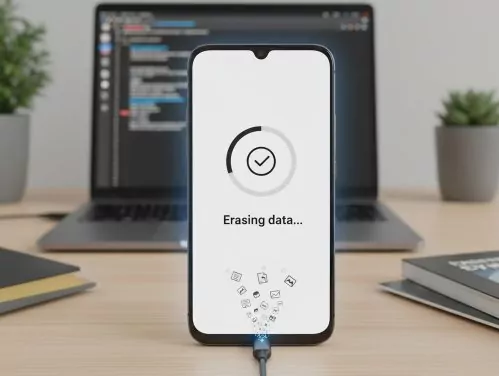
- Step 1:Prepare the Device
- Power Off: Hold the power button and select "Power Off."
- Battery Check: Ensure you have at least 30% battery to prevent the phone from dying mid-reset.
- Special Note for Samsung/Newer Pixels: If your device runs Android 11 or higher, you may need to connect the phone to a computer via USB cable to successfully trigger the Recovery menu.
- Step 2:Button Combinations by Brand
- Press and hold the following buttons simultaneously until the brand logo appears:
Manufacturer Button Combination Google Pixel, Samsung, OnePlus Power + Volume Down Motorola, Huawei, Xiaomi Power + Volume Up Older Devices (with Home button) Power + Home + Volume Up
- Step 3:Wipe Data
- 1. Navigate: Your touchscreen won't work. Use Volume Up/Down to move the highlight.
- 2. Select: Highlight "Wipe data/factory reset" and press the Power button.
- 3. Confirm: Select "Factory data reset" (or "Yes").
- 4. Reboot: Once finished, select "Reboot system now."
Method 2: Use Google Find My Device for a Remote Reset
This is the easiest method if you have another device (laptop or phone) nearby and the locked phone is connected to the internet.
Prerequisites
- The phone must be turned on and signed into a Google Account.
- Find My Device and Location must have been enabled.
- The device must have an active Wi-Fi or data connection.
How to do it:
- 1. Go to google.com/android/find.
- 2. Sign in with the Google credentials used on the locked phone.
- 3. Select the locked device from the top icon list.
- 4. Click "Erase Device." You may be asked to sign in again to verify.
- 5. Confirm the action. The phone will reset as soon as it receives the signal.
Method 3: Use Samsung's Find My Mobile (for Samsung Users)
If you own a Samsung device and created a Samsung Account, you have an extra safety net.
- 1. Visit smartthingsfind.samsung.com.
- 2. Log in with your Samsung credentials.
- 3. On the right-hand menu, click "Erase data."
- 4. Follow the prompts to remotely wipe the device.
For Businesses: A Better Way Than Factory Reset
While the methods above work for individuals, they are "brute force" solutions. For a business, a factory reset means losing company data and wasting hours of IT labor.
The Problem with Manual Resets
- FRP Lock Issues: If a former employee leaves without providing their Google password, the device becomes a "brick."
- Total Data Loss: You lose business-critical apps and logs.
- Scale: Manually resetting 50 phones via hardware buttons is inefficient.
Proactive Management: Why Enterprises Need More Than a Simple Reset
For businesses, a locked device isn't just a minor inconvenience—it's operational downtime. While manual resets work for individuals, IT administrators require a strategic approach to maintain security and continuity.
An MDM solution like AirDroid Business moves beyond "unbricking" a phone, offering features tailored for professional fleet management:
- Remote Screen Lock Reset (Zero Data Loss)
Instead of a destructive factory reset, admins can remotely clear or change the lock screen password. This allows employees to get back to work in seconds without losing local files or progress. - Automated Re-Provisioning (Zero-Touch)
A major pain point of factory resets is the setup time. With AirDroid Business, you can configure Enrollment Profiles so that immediately after a reset, the device automatically downloads necessary apps, connects to corporate Wi-Fi, and applies security policies—no manual intervention required. - FRP Bypass & Device Reassignment
To prevent "orphaned" devices (phones locked to a former employee's personal Google account), AirDroid Business allows admins to manage Factory Reset Protection settings. This ensures the company always retains ownership and can reassign the device to a new user without roadblocks. - Lost Mode & Security Geofencing
If a device is locked because it was stolen or lost, a factory reset might not be enough. You can trigger "Lost Mode" to track its real-time location, flash a message on the screen, or perform a "Power Wipe" that renders the hardware useless to unauthorized users. - Audit Logs for Compliance
Every reset, unlock, or policy change is recorded in a centralized log. This provides a clear paper trail for IT audits, showing exactly who authorized a device wipe and when it occurred.
Comparison: Manual Reset vs. MDM Management
Conclusion
Regaining access to a locked Android phone typically requires a factory reset via Recovery Mode or Google’s Find My Device, both of which permanently erase all local data. For organizations, MDM solutions provide a superior alternative by allowing remote password resets without data loss and automating re-deployment. To avoid permanent data loss or "bricked" devices due to FRP locks, always ensure you have cloud backups or a centralized management system in place before a lockout occurs.
Frequently Asked Questions



Leave a Reply.