What Is Windows Remote Access? Definition, Methods, and Real Use Cases
Most organizations depend on Windows devices—POS terminals, office desktops, industrial PCs, classroom computers, warehouse stations, and remote employee laptops. When one of these devices fails, business operations slow down or stop. Windows remote access solves this problem by allowing someone to view, control, and support a Windows computer from another location, without needing to be on-site.
This guide explains what Windows remote access is, why businesses rely on it, how it works, and where it’s commonly used.
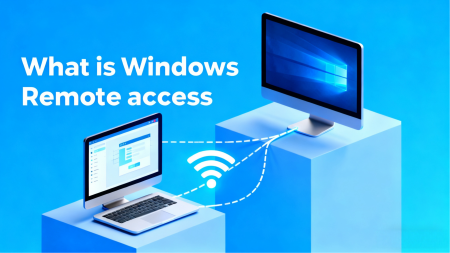
1What Is Windows Remote Access?
Windows remote access allows an IT admin, technician, or managed service provider (MSP) to connect to a Windows 10 or Windows 11 device from another location. Once connected, they can:
- See the desktop in real time
- Move the mouse and type
- Open applications
- Restart the system
- Transfer files
- Diagnose and fix problems
Windows remote access usually involves a full graphical desktop, which makes it easier to troubleshoot visually, guide end users, and interact with business applications. This is why many organizations treat Windows remote access as an essential IT capability.
2Why Windows Remote Access Matters
In many organizations, Windows devices are not just office computers. They often run payment systems, production software, scheduling tools, check-in systems, inventory databases, or customer service applications. When one of these devices fails, operations may slow down or stop entirely. A store cannot process sales if the POS is frozen. A factory cannot keep the line running if an industrial PC becomes unresponsive. A remote employee may be unable to work until IT steps in. An MSP supporting multiple clients may face immediate SLA pressure.
Remote access gives IT teams a reliable way to diagnose issues, restart services, change configurations, or recover systems without physically reaching the device. This reduces downtime, shortens response time, and keeps essential business activities functioning.
Why Organizations Rely on Windows Remote Access
- Fix problems as soon as they appear
- Reduce travel and on-site service costs
- Maintain devices outside normal business hours
- Support multiple offices, stores, and facilities consistently
- Scale IT support without expanding headcount
For many businesses, especially those operating across multiple locations, Windows remote access has become part of standard IT operations rather than a temporary workaround.
3How Windows Remote Access Works
There are several ways to remotely control a Windows device. Each offers different strengths depending on the environment, security needs, and scale.
1Windows Remote Desktop (RDP)
RDP is built into Windows. After enabling it, users can sign in remotely and interact with the system as if they were physically present. It works best inside the same network—such as IT supporting office computers. However, accessing RDP from outside usually requires VPNs, port configuration, and strict security controls to avoid exposing the machine to attacks.
2VNC (Screen-Sharing Protocols)
VNC tools transmit the actual screen image, so the remote user sees what the physical monitor displays. This is helpful for older Windows devices, industrial PCs, or machines running software without user accounts. Performance can lag on slower networks, and security often requires additional setup.
3Third-Party Remote Access Software
These platforms simplify remote connectivity across offices, networks, and geographic regions. They commonly support unattended access, file transfer, multi-device dashboards, access permissions, session logs, and mass deployment—features MSPs and multi-location businesses rely on.
4Zero-Trust Remote Access
Instead of exposing open ports, zero-trust access verifies identity before every session and encrypts all traffic. Users only receive necessary permissions, reducing security risks. This approach is growing in finance, healthcare, logistics, and critical infrastructure.
| Method | How It Works | 👍Best For | Key Considerations |
|---|---|---|---|
| RDP | Built into Windows, creates remote user session | Internal networks, office IT support | Requires port/VPN setup, security must be managed |
| VNC | Shares the live screen pixel-by-pixel | Legacy hardware, industrial PCs | May be slower, encryption not always default |
| Third-party tools | Cloud-assisted remote sessions | MSPs, multi-location businesses | Subscription or licensing required |
| Zero-trust access | Identity-verified, encrypted tunnels | Security-sensitive industries | Requires policies and onboarding |
4Where Windows Remote Access Is Commonly Used
Retail & POS Systems
A national retail chain runs Windows-based POS computers in 200 stores. When a checkout terminal stops printing receipts, IT can remotely reopen the POS software, restart the print service, or reinstall drivers—without closing lanes or sending technicians to the store.
Industrial Computers in Manufacturing
A beverage factory uses Windows industrial PCs to control labeling and conveyor machines. These devices sit inside sealed equipment on the production floor. Remote access lets engineers adjust configurations, apply patches, or review logs without stopping production.
Education Computer Labs
A university maintains hundreds of Windows desktops across multiple buildings. Instead of walking room to room, IT can install software, reset profiles, support instructors, and monitor system health remotely.
MSPs Supporting Multiple Clients
An MSP manages dozens of small businesses. Remote access enables unattended troubleshooting, malware cleanup, patching, onboarding, and server maintenance—often resolving tickets in minutes instead of hours.
Distributed Corporate Teams
Employees now work from different cities, coworking spaces, and homes. Remote access allows IT to fix connectivity issues, set up applications, or gather diagnostic data without mailing laptops back and forth.
5How Windows Remote Access Differs from Other Operating Systems
Remote access exists on many platforms, but Windows has distinct expectations, risks, and usage environments. The differences become clearer when viewed side by side:
| Category | Windows Remote Access | Android Remote Access | macOS Remote Access | Linux Remote Access |
|---|---|---|---|---|
| Typical Device Type | POS, industrial PCs, office desktops | Phones, tablets, kiosks | Laptops for creative/office work | Servers, engineering machines |
| Primary Business Role | Core operations & uptime | Workforce mobility & apps | Individual productivity | Infrastructure & backend systems |
| Support Style | System-level troubleshooting | App & settings support | End-user assistance | Command-line administration |
| Interface | Full GUI desktop | Touch UI | GUI | Mostly CLI (SSH) |
| Common Users | IT teams, MSPs, enterprises | Field staff, SMBs | Designers, employees | DevOps, engineers |
| Risk of Downtime | High—operations may stop | Medium—work continues | Low–medium | High for infrastructure |
| Unattended Access Need | Very common | Sometimes | Less common | Common for servers |
Windows endpoints often support core operational systems such as payments, production control, scheduling, or customer service. Remote access therefore affects business continuity, service availability, compliance, and SLA commitments. Compared with other platforms, Windows remote access generally carries higher operational expectations and risk considerations.
FAQs About Windows Remote Access








Leave a Reply.