Top Windows Remote Access Use Cases (With Real Operational Scenarios)
IT teams handle many different types of Windows environments. Some support office employees and internal systems. Some maintain POS computers across dozens of retail stores. Others manage industrial PCs on factory floors or hundreds of lab desktops across campus buildings. Managed service providers may oversee all of these at once.
Windows remote access use cases refer to the real operational situations where IT teams need to control, troubleshoot or maintain Windows devices remotely, often across different locations or networks.
Below are the most common real-world situations where organizations rely on Windows remote access to keep their operations running smoothly.
| Industry / Scenario | Windows Device Types | Common Issues | Remote Access Value |
|---|---|---|---|
| Office IT Support | Desktops, laptops | Application freezes, driver issues, configuration errors | Faster troubleshooting and reduced on-site desk visits |
| Retail POS Operations | POS terminals, back-office PCs | POS freezes, printer failures, driver issues | Keep checkout lines running and reduce revenue-impacting downtime |
| Manufacturing & Industrial PCs | Industrial PCs (IPC), HMI panels, SCADA stations | HMI freezing, SCADA data not updating, configuration corruption | Avoid production delays and apply fixes without entering restricted areas |
| Education Labs & Campus Devices | Lab desktops, testing kiosks, classroom PCs | Profile corruption, software failing to launch, classroom readiness issues | Efficient lab maintenance and timely classroom support |
| Distributed / Hybrid Workforce | Remote laptops | VPN failures, onboarding issues, system misconfiguration | Resolve issues without shipping hardware or requiring office visits |
| Managed Service Providers (MSPs) | Client desktops, laptops, servers | Patch deployment, malware cleanup, cross-client monitoring | Scale support across multiple clients while reducing travel time |
| Multi-Location Enterprises | Front-desk PCs, branch office desktops | Inconsistent configurations, recurring software issues | Centralize management and standardize settings across branches |
1Office IT Support for Daily Troubleshooting
Windows desktops remain the primary workstation in many offices. When something goes wrong, IT teams often need to respond quickly without waiting to reach the employee’s desk.
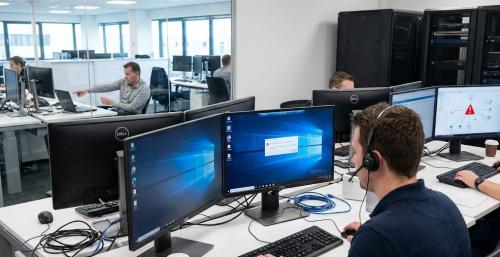
1.1Common office issues
An ERP client stops responding
A driver update breaks audio or display functions
Wi-Fi authentication fails
A system update causes an application to crash
1.2What IT can fix remotely
Review event logs and error screens
Restart services or processes
Reinstall software or drivers
Help users with configuration or onboarding
Why fast response matters: It reduces time spent walking from desk to desk and allows IT teams to close tickets faster, especially in larger offices or multi-floor buildings.
Click to learn more about case study: Real Use Case – Improving IT Ticket Resolution in a Corporate Office Environment
Background:
A mid-sized professional services firm relied on more than 100 Windows desktops across multiple office floors. With only four IT technicians, the team was responsible for employee onboarding, maintaining office systems, and resolving user tickets efficiently.
Windows devices involved:
• Approximately 120 office desktops and laptops
• Distributed across three floors within the main office
Challenge:
The IT team struggled with several operational inefficiencies:
⚠️ Frequent User Issues: Frozen applications, configuration errors, and minor software problems occurred regularly.
⚠️ Time Lost Walking Between Desks: Technicians had to move physically between floors for basic troubleshooting.
⚠️ Lack of Central Visibility: Difficult to identify recurring issues or track device health without a unified dashboard.
⚠️ Delayed Ticket Resolution: Peak periods—especially during onboarding cycles—slowed down IT response times.
Solution:
The IT team implemented a remote-access workflow that enabled technicians to review error messages, adjust settings, reinstall drivers, and collect diagnostic information without leaving their workstations. Most routine issues were resolved during the first interaction, even when users were located elsewhere in the building.
Impact:
The remote-access approach greatly improved IT efficiency:
✅ Faster Ticket Resolution: Common issues were resolved in less than half the previous time.
✅ Reduced Technician Movement: Staff spent far less time walking between desks and floors.
✅ Higher Productivity: IT teams could dedicate more time to security updates and long-term system improvements.
✅ Better Employee Experience: Users faced fewer interruptions, and onboarding setups became quicker and more consistent.
2Retail Stores Managing Windows-Based POS Systems
Many POS systems, self-checkout stations and back-office terminals run on Windows. These devices are closely tied to revenue and customer service, which means that downtime has immediate impact.
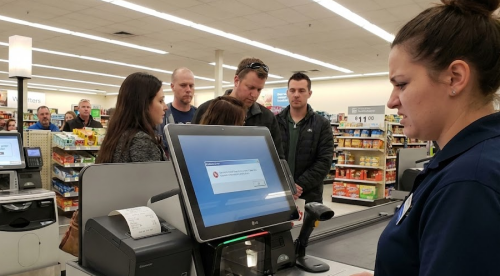
2.1Common POS problems
A checkout terminal freezes during a transaction
Receipt printing stops working because the print service failed
Barcode scanner drivers need to be reinstalled
Back-office inventory software cannot launch
2.2What remote access can resolve
Restart POS applications
Clear print queues and restart services
Update or reinstall device drivers
Restore configuration files
Why uptime is critical in retail: Retail stores cannot wait for on-site technicians. Remote access keeps checkout lanes operating and prevents interruptions during busy hours.
Click to learn more about case study: Real Use Case – Streamlining IT Support Across a Distributed Retail Network
Background:
A regional retail operator manages Windows-based POS terminals and back-office computers across dozens of stores. With IT centralized at headquarters and locations spread across several cities, maintaining system stability became increasingly challenging as the business expanded.
Windows devices involved:
• Over 300 POS terminals and workstations
• Distributed across 40+ retail locations
Challenge:
The IT team faced multiple operational barriers that affected both support efficiency and store performance:
⚠️ POS Freezes & Payment Delays: System stalls during peak shopping hours disrupted checkout flow.
⚠️ Peripheral Failures: Receipt printers and barcode scanners frequently malfunctioned.
⚠️ Long Travel Requirements: Each on-site visit required several hours of travel across cities.
⚠️ No Real-Time Visibility: IT lacked a centralized view of device health across stores.
⚠️ Manual Updates: Software and configuration updates had to be applied store by store.
Solution:
The retailer introduced a remote-access workflow enabling technicians at headquarters to troubleshoot POS terminals and workstations instantly. IT teams could review logs, restart services, reinstall drivers, and push configuration updates without visiting each store, dramatically reducing recovery time during incidents.
Impact:
The shift to remote-access support delivered strong improvements across the retail network:
✅ Rapid Issue Resolution: Average recovery time dropped from several hours to under 20 minutes.
✅ Lower Support Costs: Travel-related expenses were reduced by more than 50%.
✅ Fewer Checkout Interruptions: POS reliability improved, minimizing delays during peak hours.
✅ Consistent System Behavior: Centralized updates ensured uniform performance across all stores.
✅ Scalable IT Operations: The company expanded its footprint without hiring additional IT staff at the same pace.
3Industrial PCs and Production-Line Systems
Factories rely on Windows industrial PCs to control machinery, visualize sensor data and run production applications. These devices often sit on the shop floor or inside restricted areas, making on-site troubleshooting challenging.
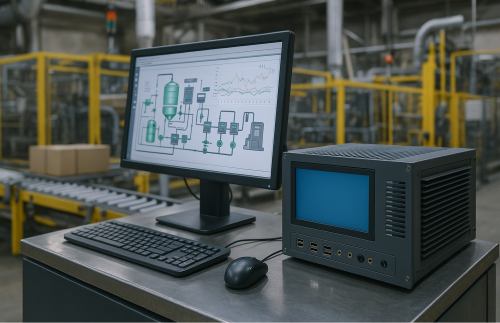
3.1Typical production-line issues
A SCADA workstation stops updating
HMI panels freeze or respond slowly
Label printers or conveyor controllers fail to load configurations
A software update causes incompatibility with production apps
3.2What engineers can do remotely
Apply patches without stopping the line
Adjust machine settings from engineering offices
Review logs for diagnostics
Restore configuration profiles
Why remote fixes reduce downtime: Troubleshooting industrial devices often requires safety checks or coordination with operators. Remote access reduces the need for physical entry and helps avoid production delays.
Click to learn more about case study: Real Use Case – Reducing Production Downtime Through Remote Access to Industrial PCs
Background:
A manufacturing company relied on Windows-based industrial PCs to run labeling systems, conveyor controls and inspection equipment. Many devices were located inside safety-restricted areas or enclosed cabinets, making on-site troubleshooting slow and inconvenient.
Windows devices involved:
• About 80 industrial PCs (HMI stations, SCADA workstations, control PCs)
• Spanning four automated production lines
Challenge:
The engineering team faced several recurring operational issues:
⚠️ HMI Panels Freezing: Devices became unresponsive during production.
⚠️ Corrupted Configurations: Configuration files occasionally broke after updates.
⚠️ Restricted Physical Access: Safety procedures made on-site entry slow and inconvenient.
⚠️ Delayed Log Retrieval: Accessing logs or restarting services took time when done manually.
⚠️ Production Slowdowns: Issues that persisted directly affected throughput.
Solution:
The company adopted a remote-access workflow that allowed engineers to diagnose issues, reload configurations, restart applications and apply minor fixes directly from a control room. Most interventions no longer required entering restricted zones or stopping the production line.
Impact:
Remote-access control significantly improved operational continuity:
✅ Faster Issue Resolution: Common problems were resolved three to four times faster.
✅ Less Time Spent on Safety Procedures: Engineers avoided frequent physical entry into restricted zones.
✅ Reduced Unplanned Downtime: Production lines experienced fewer and shorter interruptions.
✅ Improved Operational Efficiency: Engineering teams maintained smoother operations without adding extra staff.
4Education: Managing Computer Labs and Campus Devices
Universities and schools maintain hundreds or even thousands of Windows desktops used by students, instructors and administrative staff.
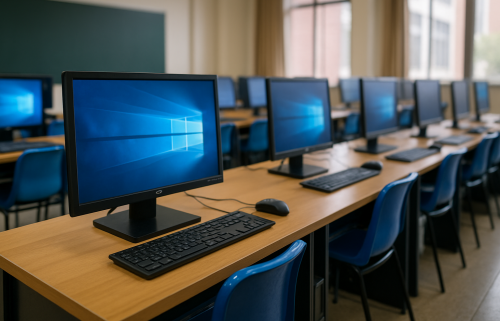
4.1Common classroom and lab issues
A classroom cannot launch required software before a session
Student profiles become corrupted
Testing kiosks need resets between sessions
Lab computers require updates across multiple buildings
4.2What IT can manage remotely
Install or update software in bulk
Reset local profiles
Monitor device status
Provide real-time assistance to instructors
Why remote support helps campus IT: Campus IT teams are often small compared with the number of devices they manage. Remote access lets them support classrooms efficiently without constant travel across facilities.
Click to learn more about case study: Real Use Case – Centralizing IT Support for Campus Computer Labs
Background:
A university maintained several computer labs and shared study areas across its main campus. Most stations ran Windows to support academic software, exams and research applications. The IT department managed thousands of student accounts and ensured device readiness throughout the semester.
Windows devices involved:
• Approximately 250 lab and classroom desktops
Challenge:
The IT team encountered several recurring problems:
⚠️ Corrupted Student Profiles: Accoun
ts frequently became misconfigured during use.
⚠️ Software Failing During Classes: Required academic tools sometimes would not launch.
⚠️ Limited IT Staff: Few technicians were available to visit rooms when issues occurred.
⚠️ Update Coordination: Applying updates across buildings was time-consuming.
⚠️ Instructor Support Needs: Teachers required timely help during scheduled sessions.
Solution:
The university deployed a remote-access workflow enabling technicians to connect to lab desktops regardless of building. They could reset profiles, reinstall academic applications, adjust configurations and verify readiness before classes. The team also monitored device health more consistently.
Impact:
Remote-access support delivered strong improvements across the campus:
✅ Faster classroom issue resolution — often within a single remote session.
✅ Reduced time spent on lab resets and software preparation.
✅ Fewer learning disruptions for instructors and students.
✅ Ability to support growing student populations without increasing IT staffing.
5Supporting a Distributed or Hybrid Workforce
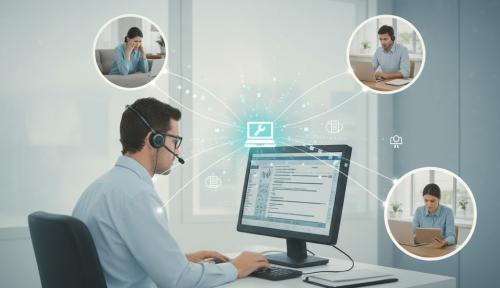
With employees working from home or in shared spaces, many IT tasks now happen remotely.
5.1Common problems for remote workers
VPN clients fail to connect
Security updates fail to install
A laptop experiences network or system errors
Employees need help onboarding applications
5.2What IT can troubleshoot remotely
Troubleshoot network and credential issues
Install or configure company software
Review system logs
Provide support without shipping hardware back and forth
Why remote access improves productivity: Remote work has become part of normal operations. Reliable remote access prevents delays in employee productivity and reduces logistical costs.
Click to learn more about case study: Real Use Case – Supporting a Distributed Workforce Across Multiple Cities
Background:
The organization operated with a hybrid work model spanning several cities, relying heavily on Windows laptops. Employees worked from home, shared offices and while traveling, creating varied environments IT needed to support.
Windows devices involved:
• About 180 employee laptops
• Used across three cities and various remote locations
Challenge:
Hybrid support introduced multiple obstacles:
⚠️ Misconfigured VPN Clients: Updates often caused connection failures.
⚠️ Access Issues While Traveling: Employees struggled to reach internal systems.
⚠️ Difficult Diagnostics: IT lacked visibility into remote environments.
⚠️ Slow Remote Onboarding: Setup steps delayed new-hire productivity.
⚠️ Ticket Spikes: Work cycles created unpredictable support demands.
Solution:
The IT team adopted a remote-access workflow enabling technicians to configure VPN clients, apply security settings, install company software and review logs regardless of employee location. Most troubleshooting was completed in a single session.
Impact:
Remote-access support strengthened hybrid workforce productivity:
✅ 2–3× faster issue resolution for common remote-work problems.
✅ Lower downtime and reduced ticket backlog.
✅ Smooth onboarding with first-day setup completion.
✅ Stable support quality without expanding the IT team.
6MSPs Delivering Services Across Multiple Clients
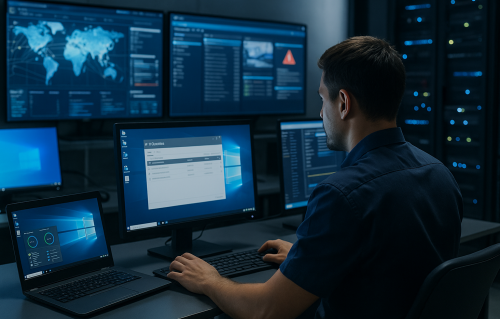
Managed service providers support many small and mid-sized businesses that depend on Windows laptops, desktops and servers.
6.1Issues MSPs frequently handle
A client reports system errors that need immediate attention
Security patches must be deployed across multiple sites
Malware or suspicious activity needs investigation
Servers require maintenance outside business hours
6.2What MSPs can manage remotely
Unattended access for fast response
Template-based patching and cleanup workflows
Cross-client monitoring and diagnostics
Consistent service delivery regardless of location
Why remote access scales MSP operations: MSPs depend on remote access to scale. It helps them meet service agreements, reduce travel and manage large device counts efficiently.
Click to learn more about case study: Real Use Case – Scaling IT Services Across Multiple Client Environments
Background:
The managed service provider supported a diverse set of SMB clients, each with its own mix of Windows desktops, laptops and servers. As the number of clients grew, the MSP needed a consistent remote workflow to manage incidents and maintenance without excessive travel.
Windows devices involved:
• Roughly 600 Windows endpoints
• Distributed across 20+ independent client sites
Challenge:
Supporting multiple clients introduced significant complexity:
⚠️ Unpredictable incident volume across clients
⚠️ Need for immediate response without travel delays
⚠️ Patch management difficulties across separate networks
⚠️ Limited visibility into device and security health
⚠️ High on-site visit costs eating into margins
Solution:
The MSP standardized a remote-access workflow to perform unattended maintenance, deploy patches, investigate suspicious activity and resolve client incidents directly from its operations center.
Impact:
The remote-access model strengthened service delivery:
✅ Significantly faster incident response
✅ 60%+ reduction in on-site visits
✅ Lower operational costs and stronger SLA performance
✅ Ability to scale client base without adding staff
7Multi-Location Enterprises and Branch Operations
Large organizations operate across offices, retail branches, hotels, clinics or distribution sites, each with its own Windows endpoints.

7.1Common issues across branch locations
Local front-desk computers need configuration changes
A regional office reports repeated application errors
Branch devices require standardized settings
New sites need remote onboarding of Windows endpoints
7.2What central IT can do remotely
Centralized troubleshooting
Standardization across locations
Remote software deployment
Continuous monitoring of device health
Why consistency matters for distributed teams: Distributed environments rely on consistency. Remote access reduces operational variation and prevents repetitive on-site visits.
Click to learn more about case study: Real Use Case – Managing Windows Devices Across Branch Locations
Background:
The company operated a network of regional branches and customer-facing offices, each relying on Windows desktops for appointments and internal workflows. With sites spread across regions, central IT required a reliable way to maintain consistency and offer timely support.
Windows devices involved:
• Around 220 Windows desktops and front-desk systems
• Installed across 50+ branch locations
Challenge:
Branch IT support was hindered by recurring problems:
⚠️ Repeated application errors reported by local teams
⚠️ Inconsistent configurations between branches
⚠️ Slow software rollouts across regional locations
⚠️ After-hours troubleshooting delays
⚠️ Small central IT team supporting many sites
Solution:
The organization implemented a remote-access workflow to troubleshoot devices, deploy updates and standardize configurations across branches without requiring local staff intervention.
Impact:
Remote management significantly improved operational consistency:
✅ Faster issue resolution across all branches
✅ Reduced configuration drift and fewer recurring problems
✅ Improved user experience at customer-facing sites
✅ Ability to scale operations without increasing IT headcount
Conclusion
Remote access plays a critical role across many Windows environments, from office workstations to production-line industrial PCs. By understanding the scenarios where it delivers the highest operational value, organizations can better plan their architecture, support models and long-term IT strategy.









Leave a Reply.