How to Turn Off Auto Update on Samsung: Block Forced OTA Updates to Save Custom Apps
Samsung’s automatic OTA updates were originally designed to optimize device performance and patch system vulnerabilities. However, for individual users who rely on custom applications or legacy software, as well as enterprise users who have deployed the Samsung Knox security system, unannounced automatic updates often lead to issues such as application crashes and business disruptions.
This article provides a comprehensive explanation of how to disable automatic updates on Samsung devices, ranging from basic manual settings to enterprise-grade professional controls.
It addresses forced update challenges on flagship models such as the S22, S23, and S24, while also balancing the security and compliance requirements of Knox-enabled devices, offering a complete update management solution for both individual users and enterprise IT administrators.
- 1 : Why Users Want to Turn Off Auto Update on Samsung?
- 2 : How to Turn Off Auto Update on Samsung (Basic Methods)
- 3 : How to Turn Off Samsung App Updates (Galaxy Store & Play Store)
- 4 : The Challenge of "Forced Updates" on S22, S23, and S24 Series
- 5 : Enterprise Solution: Total Control Over OTA Updates with AirDroid Business
- 6 : Troubleshooting: Common Issues When Disabling Updates
1Why Users Want to Turn Off Auto Update on Samsung?
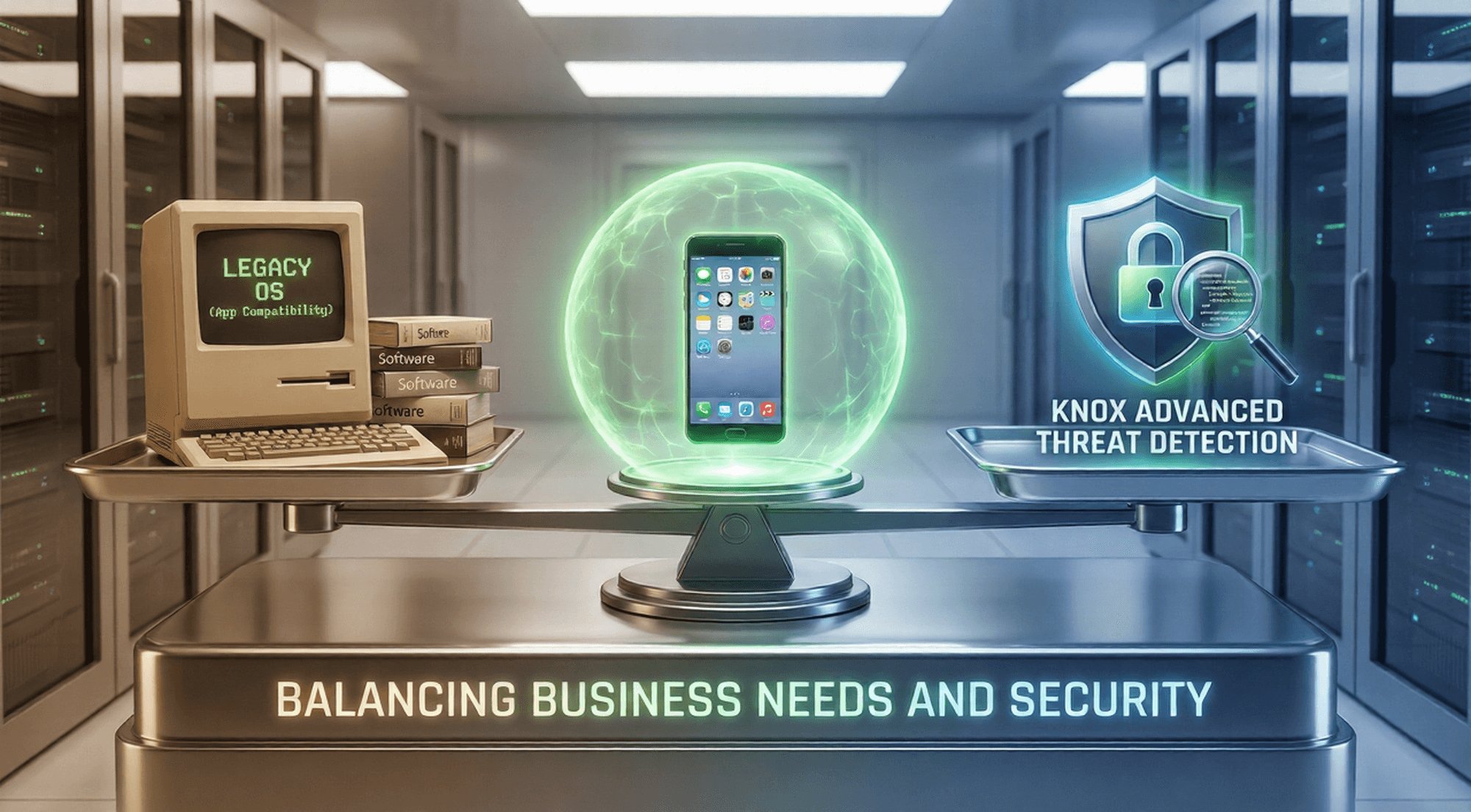
The cadence of automatic update rollouts often fails to align with users’ actual usage needs. This is especially true for Knox-enabled enterprise devices, where improper updates can even disrupt core business processes. This mismatch is a key reason why many users choose to manage updates manually instead.
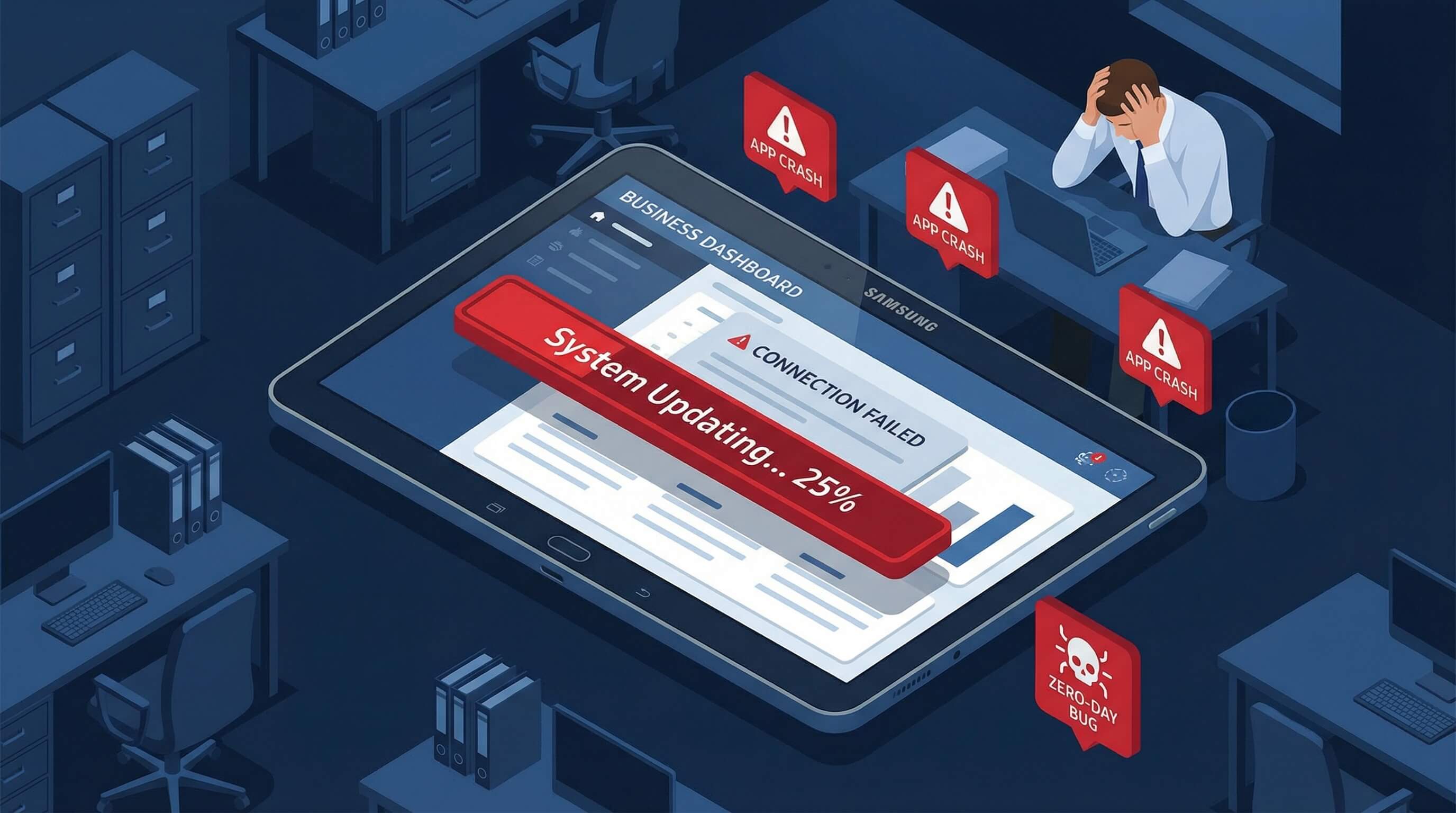
Preventing App Incompatibility
One of the most common issues after a system update is that custom enterprise applications and legacy third-party software begin to crash or lose functionality. Internally developed apps tailored to business operations are often not updated in time to support the latest firmware, and unplanned updates can also break compatibility between the Samsung Knox workspace and enterprise applications.
This can directly stall cross-department workflows and result in measurable productivity losses.
Avoiding "Day Zero" Bugs
When a new system firmware is first released, it often contains undiscovered “zero-day vulnerabilities,” which may manifest as device lag, malfunctioning core features, or a sharp drop in battery life.
Most users choose to wait for feedback from the community and testers before upgrading, once the firmware has been optimized. For enterprises deploying Knox devices at scale, encountering such vulnerabilities can also trigger a chain reaction of issues, including interruptions to MDM remote management and failures in device health attestation.
Data and Battery Management
Automatic updates silently download firmware packages in the background, which not only drains device battery but can also consume mobile data when not connected to Wi-Fi. For enterprises, if field workers’ devices update automatically over cellular networks, this leads to additional data costs.
Moreover, the performance slowdown during the update process can directly affect the normal operation of the Knox workspace, delaying field tasks and impacting productivity.
AirDroid Business - Stop Surprise Samsung Updates From Breaking Your Business Apps
Auto updates can crash custom apps, drain data, and trigger downtime across Samsung fleets. AirDroid Business helps IT teams take control with policy-based update management, so your devices stay stable while you plan upgrades on your terms.
2How to Turn Off Auto Update on Samsung (Basic Methods)
To address the needs of individual users, Samsung provides two basic settings that allow automatic updates to be disabled.
These options are simple and easy to use, but they have clear limitations and are unable to handle forced update push mechanisms.
Disabling Software Updates in System Settings:
This is the most basic method and can be completed in just three steps. It prevents the device from automatically downloading firmware packages when connected to Wi-Fi:
Steps: Open Settings → go to Software update → turn off Auto download over WLAN.
Disabling Automatic System Updates in Developer Options:
This method further disables the system’s automatic update trigger mechanism. You first need to enable Developer Options before adjusting the setting:
Steps: Open Settings → go to About phone → tap Software information → tap the Build number 7 times to unlock Developer Options → return to Settings and find Developer options → turn off Auto system updates.
Enterprise perspective: For Knox-deployed enterprise devices, employees are strictly prohibited from modifying settings using the above methods. Such actions are flagged as “untrusted operations” by the Knox device health audit system. In highly regulated industries such as finance and government, this can result in immediate restriction of access to the Knox workspace. In addition, carrier-customized enterprise devices are configured with higher update push priority, making personal-level settings completely ineffective on enterprise-customized models.
AirDroid Business - Knox Devices Need More Than Settings: Enforce Update Control Remotely
Developer Options and manual toggles don’t stop carrier or forced OTA pushes—and on Knox devices, local changes can create audit risk. AirDroid Business manages updates centrally with Knox-native controls, so employees don’t touch settings and IT keeps compliance intact.
3How to Turn Off Samsung App Updates (Galaxy Store & Play Store)
In addition to system firmware updates, automatic app updates from app stores can also cause application compatibility issues. Below are the methods to disable automatic updates in the Galaxy Store and Google Play Store, addressing the frequently asked question among overseas users: “How do I turn off the Samsung app update?”
Deactivating Galaxy Store Auto-Updates
For Samsung’s built-in app store, disabling this option prevents Samsung apps from upgrading automatically:
Steps: Open Galaxy Store → tap Menu / My page at the bottom → go to Settings → turn off Auto update apps. You can also choose Auto update apps over WLAN only to manage update traffic more flexibly.
Stopping Google Play Store Automatic Updates
This method applies to general Android scenarios and allows full control over third-party app updates:
Steps: Open Google Play Store → tap your profile icon in the top-right corner → go to Settings → select Network preferences → tap Auto-update apps → choose Don’t auto-update apps. After this, all apps will require manual updates.
4The Challenge of "Forced Updates" on S22, S23, and S24 Series
Flagship Samsung models such as the S22, S23, and S24 are popular among both individual users and enterprise deployments. These devices often face forced updates that cannot be blocked through basic settings.
The root causes are related to carrier policies and Samsung’s security mechanisms, but there are also methods available to halt ongoing forced updates.
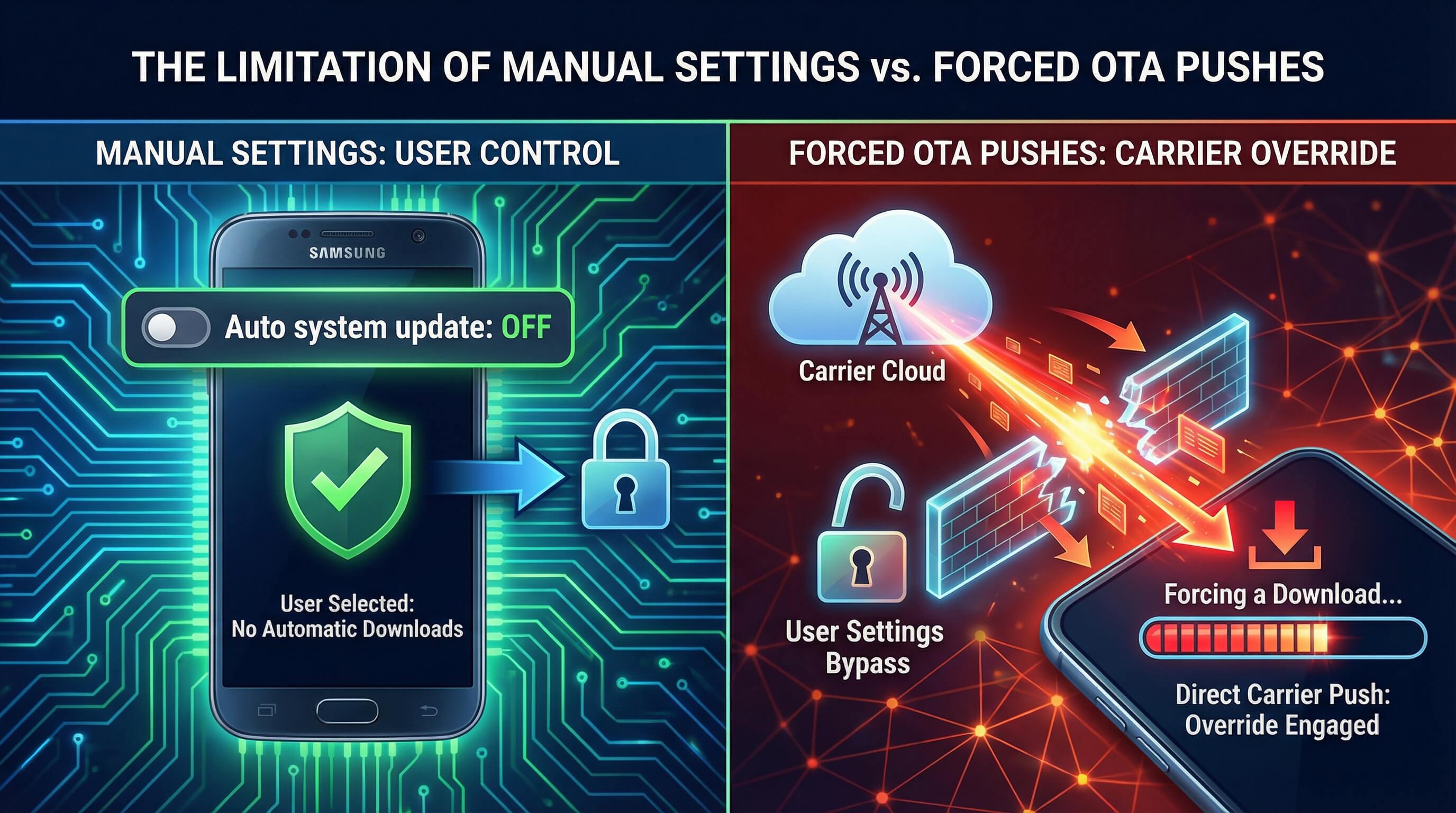
Why Your Samsung Phone Still Updates Automatically
The core reasons can be divided into two layers:
- 1. Carrier-customized device push policies: Carriers set up a forced firmware push channel for their customized devices, which takes priority over the device’s local settings. Even if automatic updates are turned off, updates may still be silently downloaded and installed in the background.
- 2. Samsung’s mandatory security patch pushes: Samsung periodically releases high-risk security patches to fix system vulnerabilities and ensure basic device security.
Knox supplement: The mandatory security patches pushed by Samsung are deeply integrated with the Knox system, directly linked to the protective capabilities of Knox TrustZone and the hardware-encrypted area. They form the foundational support for Knox’s hardware-level security. Additionally, the installation status of these patches is a key compliance indicator in enterprise Knox device audits.
How to Stop an Update Already in Progress
If the device has already started downloading or installing a firmware update, the process can be stopped by clearing the cache and data of the system update app. This is a practical issue frequently raised by overseas users:
Steps: Open Settings → go to Apps → tap More in the top-right corner → select Show system apps → find Software update → tap Storage → clear Cache and then Data. This will terminate the ongoing update.
Enterprise note: Employees are not recommended to perform this operation locally on Knox devices. IT administrators should remotely clear the update cache via the MDM backend to avoid triggering abnormal Knox device operation logs, which could affect enterprise device security audits.
5Enterprise Solution: Total Control Over OTA Updates with AirDroid Business
For individual users, the basic methods can only passively avoid automatic updates and cannot completely block them.
Enterprises managing large-scale deployments of Samsung Knox devices require professional MDM tools for precise update control.
Leveraging Samsung Knox’s native capabilities, AirDroid Business emerges as the optimal solution for managing OTA updates across Samsung device fleets.
Beyond Settings: Why Standard Methods Fail for Businesses
Update management methods at the individual level are completely inadequate for enterprise-scale device management: on one hand, enterprises cannot monitor each employee’s device settings individually, and unauthorized employee actions can lead to device management chaos; on the other hand, personal-level methods cannot support device grouping or permission-based control, making it difficult to meet the diverse business needs of different departments.
Individual Methods vs. Enterprise-Level Methods: Comparison of Update Management Capabilities
Comparison Dimension | Individual Basic Methods | AirDroid Business + Knox Enterprise Methods |
|---|---|---|
| Management Scope | Single device, no grouping capability | Supports department/device/model-level refined control, suitable for enterprise scale |
| Forced Update Interception | Cannot block carrier/Samsung forced updates | Can fully intercept all OTA updates, including forced pushes |
| Knox Security Adaptation | May trigger Knox failsafe, affecting compliance | Based on Knox native interfaces, does not compromise Knox security architecture |
| Operation Logs & Audit | No logs, cannot trace operations | Complete update operation records, supports export of compliance audit reports |
| Remote Management | No remote capability, requires local operation | Supports batch remote management, no employee cooperation needed |
Using Knox Service Plugin (KSP) to Block All OTA Updates:
AirDroid Business can directly leverage Samsung Knox’s official plugin, KSP, to achieve a truly complete interception of OTA updates on Samsung devices. All operations are developed based on Knox native interfaces, fully meeting the security requirements of enterprise Knox devices:
- Refined update blocking: Supports setting update blocking rules by department, device group, or model—for example, blocking all updates for R&D devices while gradually allowing updates for Finance devices. It also completely prevents employees from modifying update settings via Developer Options, ADB, or other methods.
- Ensuring Knox system security: Operations are based on Knox native interfaces, avoiding Knox hardware failsafe triggers or warranty flag tampering, while retaining all enterprise-level security features such as Knox Vault encryption, workspace isolation, and device health attestation.
- Blocking unauthorized update channels: Remotely disables USB updates and Odin flash mode, preventing employees from installing non-enterprise-certified firmware via flashing tools, ensuring firmware uniformity from the source.
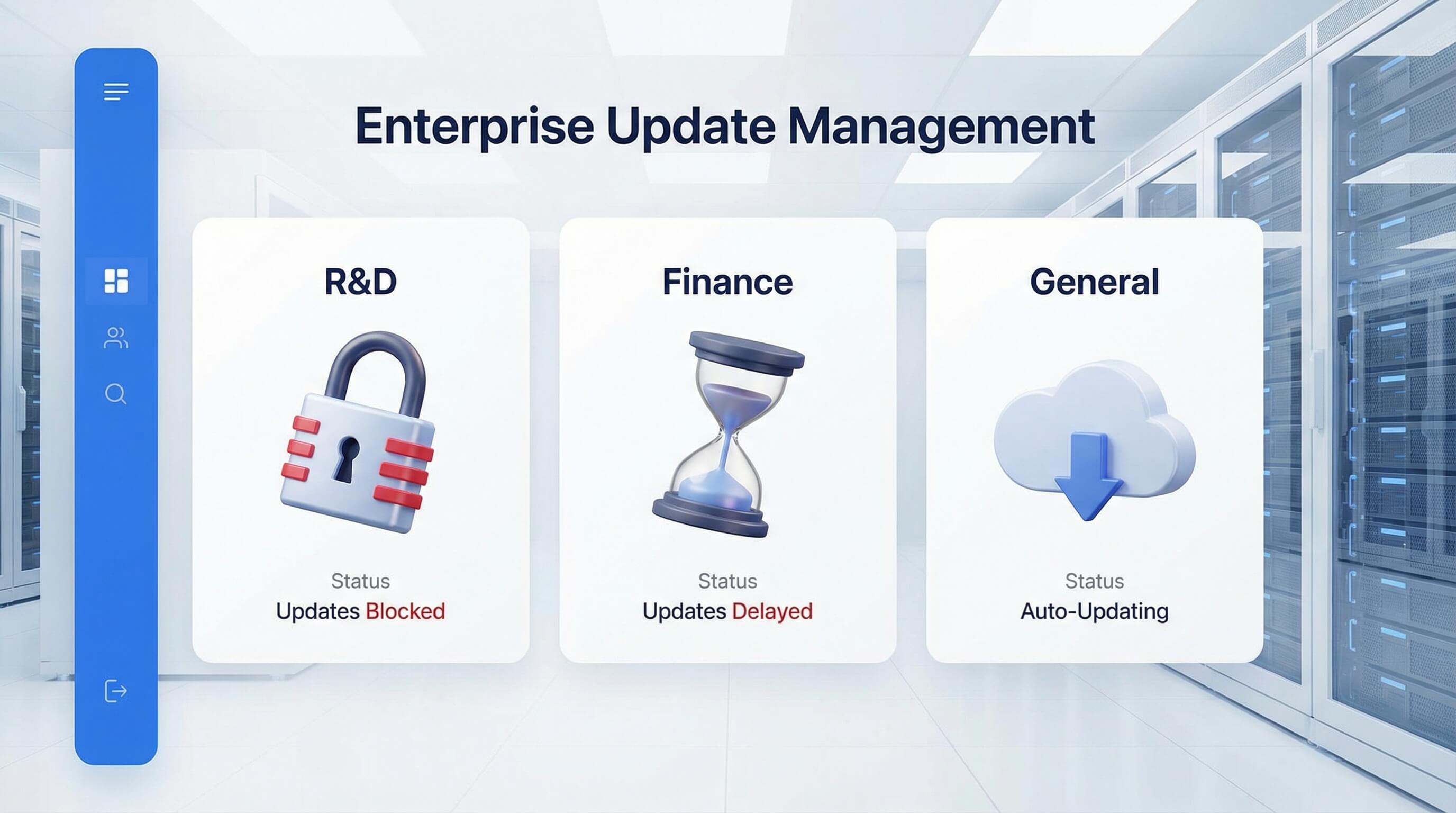
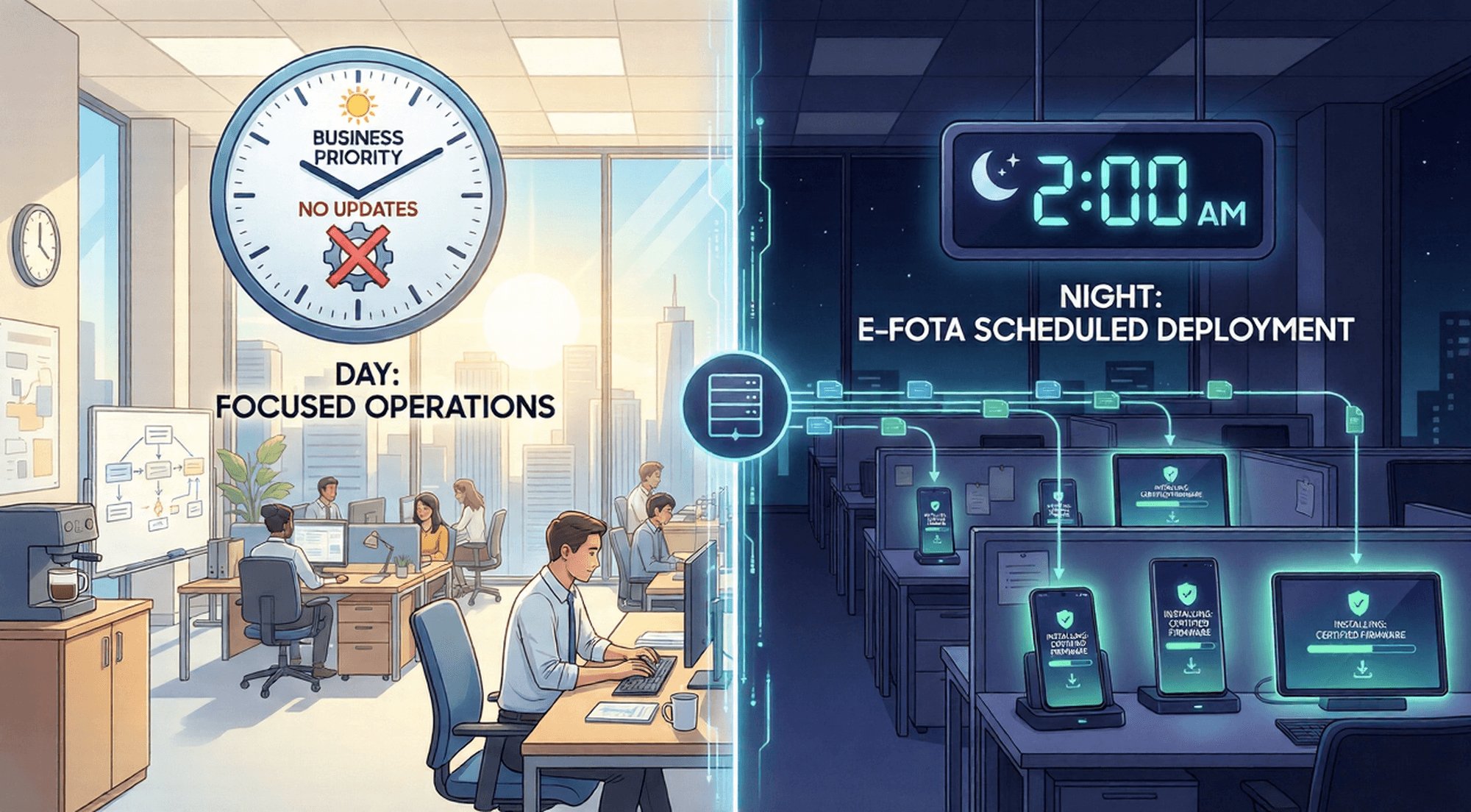
Leveraging Knox E-FOTA for Scheduled Updates:
Compared with permanently disabling updates, enterprises require control and scheduling over updates. AirDroid Business, combined with Knox E-FOTA (Enterprise Firmware Over-the-Air) functionality, enables delayed updates and version-specific pushes rather than simple permanent blocks, balancing business compatibility with system security:
- Custom update schedule: IT administrators can set dedicated update times for Knox devices of different departments via the AirDroid Business console—for example, pushing updates during non-working hours to avoid disrupting business operations.
- Specify firmware versions: Enterprises can choose stable, certified firmware versions for batch deployment, skipping new versions with compatibility issues to ensure the compatibility of custom enterprise apps and the Knox workspace.
- Batch management and fallback: Supports unified firmware version management for the entire Samsung device fleet. If updates fail on certain devices, the Knox environment can be remotely restored via the console without losing enterprise-encrypted data.
AirDroid Business - Get 100% Control of Samsung OTA Updates—Block, Schedule, and Standardize
Use Knox Service Plugin (KSP) to block forced OTAs across device groups, then use Knox E-FOTA to roll out only approved firmware versions on your schedule. Keep custom apps stable, reduce downtime, and stay audit-ready—without rooting or risky workarounds.
6Troubleshooting: Common Issues When Disabling Updates
Whether for individual or enterprise users, disabling automatic updates often leads to issues such as update notification pop-ups and security risks from outdated firmware. The following are targeted troubleshooting and resolution methods, balancing user experience with device security.
Persistent Update Notifications
After disabling updates, update reminders may still frequently appear in the device notification bar. They can be completely removed using two methods:
- Local operation: Follow the previous steps to clear the Software update cache and data, then go to the Software update notification settings and turn off Allow notifications.
- Enterprise operation: IT administrators can remotely and batch clear update notifications for all devices via the AirDroid Business console, without requiring any local action from employees, improving management efficiency.
Security Risks of Staying on Older Firmware
After disabling automatic updates, devices may miss Samsung’s official security patches, which is a significant security risk:
- For individual users: The system may contain unpatched vulnerabilities, making it susceptible to viruses and malware attacks.
- For enterprise Knox devices: Outdated firmware can weaken the underlying protection of Knox TrustZone. Unpatched vulnerabilities may put enterprise-encrypted data at risk, and old firmware may be flagged by the MDM system as a “non-trusted device,” restricting access to the enterprise intranet.
7Conclusion: Taking Back Control of Your Samsung Fleet
For Samsung devices, automatic update management serves different needs: for individual users, it is a “pitfall avoidance” requirement—basic settings can reduce the inconvenience of unplanned updates but cannot block carrier or Samsung forced pushes. For enterprises deploying Samsung Knox devices, update management is a core requirement for scalable, precise, and compliant administration, which basic methods cannot satisfy.
AirDroid Business, leveraging Samsung Knox’s native security architecture, uses the KSP plugin to fully intercept OTA updates and, with E-FOTA functionality, enables flexible update scheduling. This not only resolves the issue of forced updates for enterprises but also ensures the security and compliance of Knox devices, giving enterprises true control over update management across their Samsung device fleet.
Try AirDroid Business now to achieve 100% update control over your Samsung device fleet!
FAQs


Leave a Reply.