Windows Kiosk Mode: Setup Guide for Single-App & Multi-App Deployment
Are you tired of customers or employees accessing unauthorized apps on shared Windows devices? Windows kiosk mode locks down your device to run only specific apps—perfect for retail, healthcare, education, and public spaces.
The self-service kiosk market reached $32.51 billion in 2024 and is projected to grow to $56 billion by 2033, showing how businesses increasingly rely on secure, controlled device environments.
In this guide, you'll learn what kiosk mode is, how to choose between single-app and multi-app setups, the best configuration methods, and hardware recommendations for your deployment.
Part 1: What Is Windows Kiosk Mode?
Windows kiosk mode is a security feature that restricts a device to run only approved applications, preventing users from accessing settings, files, or other programs. Think of it like an ATM—you can only use the banking app, nothing else. No browsing files, no installing games, no changing settings.
Windows kiosk mode delivers three major advantages. First, it improves security by limiting devices to approved apps only, eliminating the risk of malware and unauthorized access. Second, users see a simplified interface with zero confusing menus, which cuts training time and frustration. Third, IT workload drops significantly—retail stores have reduced device troubleshooting by 70% after implementing kiosk mode on their POS systems.
Normal Windows vs. Kiosk Mode: Here's the difference in plain terms.
- 1. Normal Windows lets users access everything—the Start menu, File Explorer, Control Panel, all installed apps.
- 2. Kiosk mode locks it down to just the essentials. Boot up the device, and it launches straight into your designated app. That's it.
Three Ways to Set Up Kiosk Mode
Windows uses Assigned Access policies to create a restricted user account that launches only specified apps. Instead of complicated "group policy object configurations," Windows just uses built-in settings you can access through the Settings app.
You have three main ways to implement kiosk mode:
- Settings UI: Click a few buttons in Windows Settings—easiest for one device. Takes about 5 minutes and requires zero technical expertise.
- PowerShell Scripts: Automate setup for multiple devices. If you're managing 10-20 kiosks, scripts save hours of manual configuration.
- MDM Solutions (Like AirDroid Business): Remotely configure hundreds or thousands of devices from one dashboard. Perfect when you're managing kiosks across multiple locations.
Now that you understand what kiosk mode is, let's explore the two main types you can choose from.
Part 2: Single-App vs. Multi-App Kiosk: What's the Difference?
Single-app kiosk locks the device to one application. Multi-app kiosk allows a curated list of apps with a restricted Start menu. Let's break down each one.
1Single-App Kiosk Mode
The device boots directly into your chosen app. Users can't exit, switch apps, or access anything else.
Common Use Cases:
- Digital Signage Displaying Company News or Wayfinding Information: Perfect for lobby displays or mall directories.
- ATMs Running Only Banking Software: The classic example—maximum security for financial transactions.
- Airport Self-Service Check-In Kiosks for Boarding Passes: Fast, simple, and impossible for users to mess up.
Benefits: Maximum security—zero risk of malware or unauthorized access. Simplest user experience with just one task to complete.
Drawbacks: Zero flexibility. If users occasionally need a second app, single-app mode won't work. You'll need to rethink workflows since everything must happen in that one app.
2Multi-App Kiosk Mode
Users see a customized Start menu with only approved apps. They can switch between apps but can't access anything else.
Common Use Cases:
- Library Computers: Browser, catalog search, Microsoft Word only.
- Retail Employee Workstations: Inventory, email, training videos.
- Shared Office Computers: Zoom, Excel, Chrome—nothing else.
Benefits: Balanced flexibility for tasks requiring 2-3 tools. Better for complex workflows (like checking email while referencing a spreadsheet). Still secure—users can't download or install unauthorized apps.
Drawbacks: More configuration time (30-45 minutes vs. 5 minutes for single-app). Slightly higher security risk since more apps mean more potential attack surfaces.
Quick Decision Guide:
- Choose Single-App If: Device is public-facing, workflow fits in one app, or security is paramount.
- Choose Multi-App If: Device is for employees, tasks require multiple tools, or moderate security is acceptable.
We recommend single-app for public-facing devices and multi-app for internal employees. This balance maximizes security where it matters most.
Part 3: How Do You Set Up Windows Kiosk Mode?
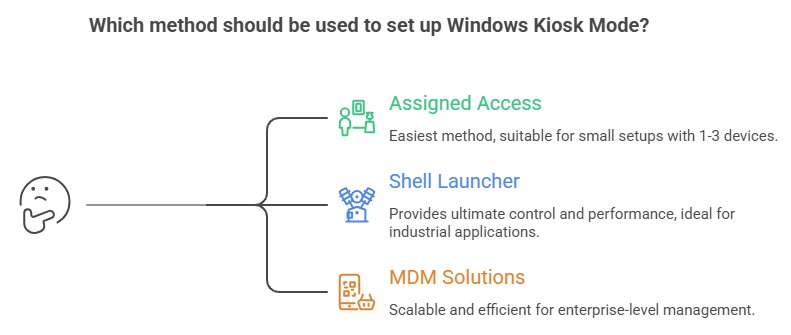
There are three main methods—Windows Settings (easiest), Shell Launcher (advanced), and MDM software (enterprise-scale). Each method has pros and cons depending on your deployment size and technical expertise.
Let's compare them so you can pick the right one.
1Method 1: Assigned Access via Windows Settings
Assigned Access is a built-in Windows feature available in Windows 10/11 Pro, Enterprise, and Education editions. It lets you configure kiosk mode through the Settings app without any scripting or technical knowledge.
Here's the Step-by-Step Process:
- 1. Open Settings > Accounts > Family & Other Users > Set Up a Kiosk
- 2. Choose Your App (Microsoft Edge, Custom UWP App, etc.)
- 3. Create a Kiosk Account
- 4. Done—Device Boots Into That App for That User
The whole setup takes under 5 minutes from start to finish. It's completely free—no additional software, no subscriptions, no hidden costs. Perfect for single-device setups where small businesses with one or two kiosks can have them running in under 10 minutes.
The Trade-Offs:
You must configure each device individually. With 2-3 devices, this is fine. With 50 devices, it becomes tedious and error-prone. You also get basic lockdown but miss out on remote monitoring, automated updates, and advanced security features compared to MDM solutions.
Best For: Small retail shops with 1-3 kiosks, single digital signage displays, home projects, or proof-of-concept testing before larger deployments.
2Method 2: Shell Launcher (Advanced)
Think of Shell Launcher as the "nuclear option" for kiosk mode. Instead of just restricting apps, it completely replaces the Windows desktop environment with your chosen application. The Start menu, taskbar, and File Explorer never even load. Your app becomes the entire user interface.
This level of control comes at a price though. Configuration requires XML files, PowerShell commands, and deep Windows knowledge. One wrong setting can lock you out of the device completely (and we've seen it happen). You'll also need to enable Shell Launcher through Windows Features or PowerShell, configure an XML file specifying your custom shell, then deploy via Group Policy or scripting.
Why Would Anyone Use This?
Three main reasons: ultimate interface control, lightweight performance (no Windows Explorer overhead eating resources), and enhanced security (no default shell means fewer exploitable components). Industrial control panels, custom-built kiosks for unique applications, and environments where every resource counts benefit most from Shell Launcher.
The Reality Check:
Expect to invest 4-6 hours just getting comfortable with the configuration process. You'll need scripting skills, patience for troubleshooting, and a solid understanding of Windows internals. If something breaks, you'll need deep Windows knowledge to fix it.
Best For: Industrial control panels running specialized software, custom-built kiosks for unique applications, IT professionals with scripting skills and time to troubleshoot.
Warning: Don't use Shell Launcher unless you're comfortable troubleshooting Windows internals. It's powerful but unforgiving.
3Method 3: MDM Solutions (Enterprise-Scale Management)
Mobile Device Management software like AirDroid Business, Microsoft Intune, or SOTI flips the entire kiosk management model. Instead of configuring each device manually, you create policies once and push them to hundreds or thousands of devices remotely.
The process is simple: enroll devices into your MDM platform (usually takes 2-5 minutes per device initially), create a kiosk policy specifying which apps are allowed, then push that policy to selected devices remotely. Changes happen from your central dashboard without touching each device.
What Makes MDM Worth the Cost?
- Scalability Is Unmatched: Manage 10 or 10,000 devices with the same effort. Add a new kiosk to your fleet? Apply your existing policy in 30 seconds.
- Remote Management Saves Enormous Time: Make changes without touching each device. Update your retail kiosk apps across 50 stores during your lunch break.
- Advanced Features Include: App whitelisting, screen time limits, remote lock and wipe, and geofencing. Need to disable a stolen kiosk? Do it from your phone.
- Ongoing Monitoring: Get alerts if a device goes offline, is tampered with, or develops issues. Proactive management versus reactive firefighting.
The Investment Required:
MDM subscriptions range from $2-10 per device per month. For 100 devices, that's $200-1,000 monthly. You'll also need to invest 2-4 hours of training to get comfortable with most MDM solutions. That said, the time savings usually pay for the subscription within 3-4 months.
Best For: Retail chains with kiosks in multiple stores, hospitals managing patient check-in terminals, schools with shared computer labs, any organization with 10+ kiosk devices.
AirDroid Business MDM supports both single-app and multi-app kiosk modes, plus remote troubleshooting and real-time monitoring. We've designed it specifically for enterprises managing hundreds of Windows devices across multiple locations. Starting at $2.5 per device per month, it pays for itself within weeks through reduced IT overhead.
Comparison: Which Method Should You Choose?
- 1-5 Devices? Use Assigned Access. Simple and free.
- 5-20 Devices With IT Expertise? Consider Shell Launcher if you need full customization and have scripting skills.
- 20+ Devices or No IT Staff? Choose MDM. The monthly cost pays for itself through time savings—usually within 3-4 months.
Quick Decision Guide:
Key Consideration: If you plan to grow beyond 10 devices, start with MDM now. Migrating from manual setup to MDM later is time-consuming and frustrating.
Looking for a deep dive? For a comprehensive, step-by-step walkthrough of each method mentioned above, check out our Detailed Windows Kiosk Configuration Guide.
Part 4: What's the Right Windows Kiosk Display for Your Deployment?
The best kiosk display depends on your use case, environment, screen size needs, and budget. Even the best software won't help if your hardware fails after 6 months of public use.
Key Hardware Specifications to Consider
Touchscreen Technology:
- Capacitive (Like Smartphones): More responsive, supports multi-touch, costs 30-50% more. Best for indoor retail and offices.
- Resistive: Cheaper, works with gloves or stylus, more durable. Best for industrial settings, outdoor kiosks, or healthcare.
Screen Size:
- 10-15 Inches: Countertop check-in kiosks (airlines, hotels).
- 21-27 Inches: Self-service stations (retail, DMV, hospitals).
- 32+ Inches: Digital signage, wayfinding (malls, airports).
Brightness:
- Indoor: 250-400 nits is sufficient.
- Outdoor: 1000+ nits required to combat glare.
Durability:
- IP54+ Rating: For dusty or wet environments.
- Tempered Glass or Anti-Vandal Coatings: For public spaces.
Performance:
- Minimum: Intel i3, 4GB RAM (basic single-app kiosks).
- Recommended: Intel i5, 8GB RAM (multi-app or video content).
Top Kiosk Display Brands
Elo Touch Solutions: Industry leader, 10+ year warranties, $800-2,500. Best for retail and hospitality.
Advantech: Rugged industrial-grade, $1,200-3,500. Best for harsh environments and outdoor use.
Dell OptiPlex: Budget-friendly, $600-1,200. Best for internal office kiosks.
Conclusion
Windows kiosk mode secures devices, simplifies user experiences, and reduces IT workload. The right setup transforms standard Windows devices into tamper-proof workstations.
Quick recap: Use Windows Settings for 1-5 devices, Shell Launcher for custom builds with technical expertise, and MDM for 10+ devices. Don't skimp on hardware—commercial-grade displays last 5-10 years and pay for themselves through lower maintenance costs.
Managing multiple kiosk devices? An MDM solution saves countless hours on troubleshooting and updates.
AirDroid Business - Setting up kiosk mode at scale
AirDroid Business offers free consultations to assess your needs. Whether you're deploying 10 kiosks or 1,000, we'll help you create a secure, reliable environment.


Leave a Reply.