iPad Kiosk Mode Guide: Lock Down Your Devices for Business
Tired of customers browsing Instagram on your demo iPads? Fed up with employees accessing personal apps on work devices? There's a straightforward solution.
iPad kiosk mode locks your devices to specific apps, preventing unauthorized access while creating a professional experience.
In this guide, you'll learn what kiosk mode is, why iPad beats Android for business, the three main setup types, hardware protection options, and battery management tips.
1What Is iPad Kiosk Mode?
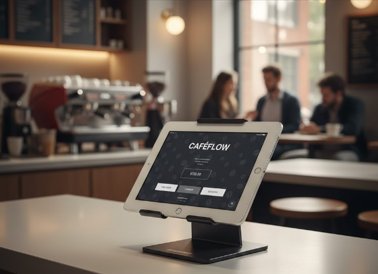
iPad kiosk mode restricts devices to run only approved apps, preventing users from accessing settings, personal apps, or corporate data. Businesses use this to turn iPads into dedicated tools for point-of-sale, customer check-ins, surveys, or interactive displays.
Hotels use kiosk mode for guest check-ins via iPad without allowing access to Safari, email, or device settings. Guests tap through the check-in process, no distractions, no security risks.
Apple offers Guided Access (built-in feature for temporary lock) and Autonomous Single App Mode or ASAM (enterprise permanent lock via MDM).
The rising adoption of such solutions is reflected in the broader market. According to Persistence Market Research, the global MDM market is set for robust growth, projected to increase from $10.1 billion in 2024 to $40.8 billion by 2032, maintaining a 19% CAGR. This growth shows how essential professional device management has become for modern enterprises.
2Why Do Businesses Need iPad Kiosk Mode?
Businesses across industries are choosing iPad kiosks over Android tablets and traditional systems. Here's why kiosk mode has become essential:
iPad Offers Superior Hardware Reliability and Consistency
Apple supports iPads with system updates for five to six years, while most Android tablets only get two to three years of support. We've seen retail stores still using iPad Air 2 from 2014 as checkout kiosks, over 10 years of reliable service.
Every iPad runs the same iOS version at launch, making deployment predictable. Unlike Android where each manufacturer customizes the OS differently, every iPad works identically. Deploy once, replicate everywhere without device-specific bugs.
iPads feature aluminum unibody construction that withstands daily use better than plastic Android tablets. You can expect an iPad to last four to seven years compared to two to five years for Android tablets. Longer software support keeps your kiosks secure and compliant, critical for payment processing or health data.
Prevent Unauthorized Access
Kiosk mode locks down iPads so employees or customers can't access personal apps, settings, or corporate data. Without kiosk mode, a curious customer could swipe to Safari, check their email, and accidentally expose your WiFi password or internal business accounts.
Electronics stores use kiosk mode on demo iPads to prevent customers from downloading apps, changing settings, or factory resetting devices. Medical clinics lock patient check-in iPads to prevent access to other patients' information or HIPAA-protected data.
Unlike regular iPads where anyone can swipe home, kiosk mode creates an impenetrable wall around your approved apps. The device does exactly what you want, nothing more, nothing less.
Deliver Better Customer Experience Than Traditional Systems
iPad kiosks feel intuitive, no training needed like with clunky POS keyboards. Fast-casual restaurants report shorter lines and higher order accuracy after switching to self-service iPad kiosks.
Why choose iPad over traditional POS?
Traditional POS systems cost $1,200-$3,000 per terminal, while iPad kiosks cost $400-$800. A coffee shop with three stations saves $3,600 upfront.
Traditional POS is single-function, but iPads switch roles instantly, POS during lunch, reservation system during dinner, employee time clock after hours. One device replaces three.
iPads take 70% less counter space and kiosk mode removes notifications and pop-ups. Customers see only what they need.
Reduce IT Workload
MDM solutions let you configure and update all kiosk iPads remotely. No need to touch each device. Instead of manually configuring 50 iPads one by one, IT teams deploy kiosk settings to all devices in minutes via an MDM solution.
Pre-configure kiosk mode before devices arrive with zero-touch enrollment. Employees unbox and the iPads are ready to use. Order iPads through Apple Business Manager and they'll auto-enroll in your MDM when first powered on.
MDM can restart frozen kiosks, push updates, or reset settings remotely. You don't need a dedicated IT team, non-technical managers can handle kiosk management themselves through simple dashboards.
3What Are the 3 Common Types of iPad Kiosk Mode Setups?
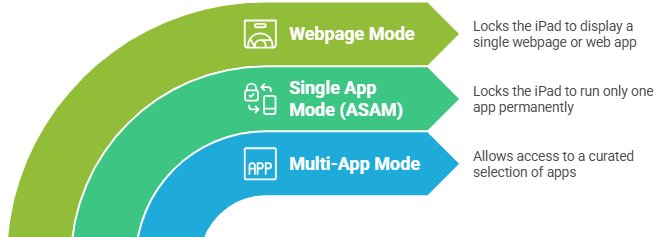
There are three main ways to configure kiosk mode depending on your business needs:
iPad Kiosk Mode Multiple Apps
Multi-app mode allows access to a curated selection of approved apps while blocking everything else. IT admins create an app whitelist via MDM, and only approved apps appear on the home screen.
Hospitals use this for nurses who need patient records, medication databases, and internal messaging, but can't install games or social media. Warehouse workers benefit from inventory apps plus scanning tools. This balances flexibility with control and employees stay productive without distractions.
iPad Single App Mode (ASAM)
Single App Mode locks the iPad to run only ONE app permanently. Users cannot exit to the home screen or access settings. This is best for public-facing kiosks, customer surveys, self-checkout, and museum displays.
Gyms use Single App Mode for front desk check-ins. Members tap their card and enter. This requires MDM to enable Autonomous Single App Mode (ASAM). Unlike Guided Access, which is temporary and manual, ASAM is permanent until IT removes it remotely. This is the most secure option for 24/7 public kiosks.
iPad Kiosk Mode Webpage
Webpage mode locks the iPad to display a single webpage or web app. It's ideal for information displays, building directories, flight status boards, and registration forms. Airports use this for flight information displays that pull live data from websites.
The advantage? No need to develop native apps and just point the kiosk to your existing web dashboard and update content remotely by changing the webpage. It requires stable Wi-Fi and may have slower performance than native apps. Perfect for event registration, real estate listings, or menus that change frequently.
4How Do iPad Kiosk Enclosures Protect Your Hardware?
Software locks down the iPad digitally, but you need physical protection to prevent theft, damage, and cable tampering. Lock mechanisms and tamper-proof screws physically secure the iPad. Enclosures pay for themselves after one prevented theft.
Enclosures hide charging cables for a cleaner look and prevent tripping hazards. They can display your brand logo, creating professional aesthetics. Hotels want polished lobby kiosks, not personal iPads propped up with tape.
Desktop/countertop enclosures work for reception desks and POS stations, featuring weighted bases with 360° swivel. Floor stands suit lobbies and hotel check-ins with adjustable height for accessibility. Wall mounts provide space-saving installations for building directories, using VESA-compatible mounts with slim profiles.
Ensure enclosures have ventilation. iPads overheat if fully enclosed 24/7. Check for Kensington lock slots and tamper-proof screws. Hidden cable channels look professional and prevent unplugging. Verify the enclosure fits your specific iPad model before purchasing.
5How Do You Manage iPad Battery Life in Kiosk Mode?
Kiosk iPads run all day, every day. Here's how to maximize battery life:
Keep It Plugged In: Stationary kiosks should stay connected to power 24/7. Use Apple-certified adapters to avoid degradation. Continuous power prevents battery cycling (draining and recharging), which extends lifespan.
Enable Low Power Mode Remotely: Use MDM to turn on low power settings for portable kiosks. This extends battery life by 30-40% during power outages or moves between locations. Trade show booths benefit from this during setup before outlets are available.
Monitor Battery Health: Track battery status across all devices from a central dashboard. An MDM solution shows which kiosks need battery replacements before they fail. Replace batteries showing less than 80% health to avoid unexpected shutdowns during business hours.
Schedule Automatic Restarts: Use MDM to restart iPads weekly to clear memory and prevent slowdowns. We recommend overnight restarts for 24/7 kiosks. Customers never notice the two-minute downtime at 3 AM. Restarts improve battery efficiency by closing background processes.
Reduce Screen Brightness: Lower brightness saves power without compromising indoor readability. Set optimal levels remotely based on each kiosk's location.
Disable Unnecessary Features: Turn off Bluetooth, AirDrop, and background app refresh via MDM. A kiosk running only a POS app doesn't need these features draining the battery.
6Conclusion: Ready to Set Up iPad Kiosk Mode?
iPad kiosk mode transforms your devices into secure, dedicated business tools. By combining software restrictions (single-app, multi-app, or webpage mode) with physical enclosures, you get complete control over how customers and employees interact with your iPads.
The advantages are clear: iPads outlast Android tablets, cost less than traditional POS systems, prevent unauthorized access, and deliver a modern customer experience. Plus, with MDM tools, your IT team can manage hundreds of kiosks remotely without touching a single device.
Already decided on your setup? Check out our step-by-step tutorial: [How to Enable and Configure iPad Kiosk Mode] for detailed configuration instructions.
Setting up kiosk mode is easier than you think. Whether you're a small café with one iPad or a retail chain with 500 devices, the peace of mind and control are worth it. Your devices, your rules.
AirDroid Business - Streamline Kiosk Management for Android & Windows
AirDroid Business is an all-in-one MDM solution for managing kiosk mode across Android and Windows from a single dashboard.


Leave a Reply.