Kiosk Mode Software Review for IT Buyers (Android, Windows, iOS)
Scope of this review: This article only evaluates kiosk mode and device lockdown capabilities: single/multi-app locking, web kiosk, system restrictions, exit controls, and kiosk browser behavior. We're not reviewing full MDM/UEM feature sets like asset management, patch management, or compliance reporting, unless they directly affect kiosk stability or operational recovery.
Here's what we cover:
- A quick-answer selection table by use case
- Eight evaluation dimensions that separate capable tools from surface-level ones
- Individual reviews of five tools using the same format for every product
- A scenario-by-scenario guide for choosing based on your actual situation
- A pre-deployment checklist to use before your first rollout
Let's get into it.
1What's the Right Kiosk Mode Software for Your Situation?
The core question in kiosk software selection isn't "can it lock a device?" Almost every tool on this list can do that. The real question is: can it keep running reliably for weeks at a time, and when something goes wrong, can you fix it without going to the location?
Use this table as a starting point. It will point you toward the right direction based on your actual use case.
| Use Case | Typical Device Form | Top Priorities | Where to Start |
|---|---|---|---|
| Digital signage / unattended screens (Android + Windows) | Android TV management, commercial display, wall-mounted tablet | App stability, crash auto-recovery, remote troubleshooting, kiosk status alerts | AirDroid Business |
| Apple-first environment (iOS/macOS) | iPad POS, iPad self-service, iPhone | ABM integration, Supervised Mode depth, Apple ecosystem reliability | Jamf Pro |
| Windows-heavy fleet (Microsoft ecosystem) | Windows touchscreen kiosk, enterprise PC terminals | Windows Assigned Access depth, Azure AD / Intune policy integration | Microsoft Intune |
| Industrial / field devices | Rugged Android handhelds, vehicle-mounted terminals | Device diversity support, complex form factor handling, remote recovery | SOTI MobiControl |
| Multi-platform fleet (mid-size teams) | Mixed Android, iOS, Windows devices | Single console across platforms, standardized kiosk policies, mid-market pricing | ManageEngine MDM Plus |
2What Is Kiosk Mode Software?
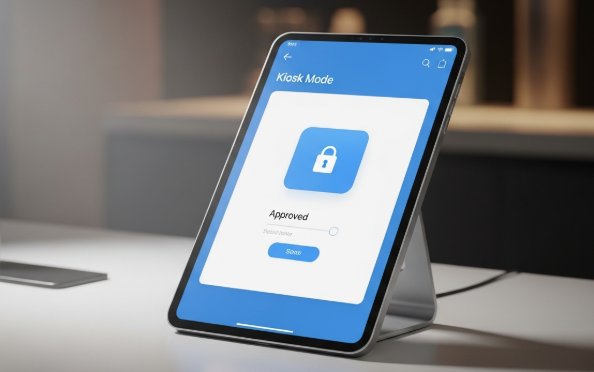
Kiosk mode software locks a device to a specific app, a set of approved apps, or a specific web entry point. It prevents users from accidentally exiting, installing unauthorized apps, or accessing system settings.
You'll find it in digital signage displays, self-service ordering and payment terminals, retail POS systems, employee workstations, and public-access information kiosks. For IT and operations teams, the real value is making a terminal controllable, continuously available, and quickly recoverable, not just locked.
3What Should You Look for in Kiosk Mode Software?
Don't just check whether a tool can lock a device. Check whether it can stay locked, recover automatically, and let you intervene remotely when it doesn't. These eight dimensions are where tools actually differ.
1. Kiosk Form Coverage
Check whether the tool supports single-app, multi-app, and web kiosk mode — and whether each mode works under your intended enrollment setup. "We support multi-app kiosk" and "multi-app kiosk that works without Device Owner enrollment" are often two different things.
2. Browser Kiosk Depth
For web kiosk and self-service terminals, look for: URL whitelisting, address bar suppression, tab limits, scheduled cache clearing, incognito controls, zoom, and print suppression. A kiosk without download blocking can be exited through a browser file picker. Test this before you commit.
3. System-Level Exit Blocking
Every visible control is a potential exit: notification shade, navigation bar, Home button, Recent Apps, and system settings. On Android, full lockdown typically requires Device Owner enrollment. On iOS, Supervised Mode is the equivalent. On Windows, Assigned Access handles most of this natively.
4. Exit Controls and Bypass Resistance
Look for four things: an exit PIN for authorized personnel, a temporary maintenance exit, automatic app relaunch after crashes, and automatic return to kiosk mode after a reboot. Reboot behavior is where many tools fall short — test it explicitly.
5. Deployment Requirements
Some kiosk features only work under specific enrollment modes. On Android: Device Owner, Android Enterprise, Zero-Touch, or Samsung KME. On iOS: Apple Business Manager. On Windows: Group Policy baseline. Ask every vendor which features require which enrollment mode before you shortlist them.
6. Remote Troubleshooting Capability
For unattended devices, check for remote screen view, remote control, remote camera, remote reboot, cache clearing, and the ability to push an app back to the foreground. These are separate capabilities — not every tool has all of them. A screen blackout mode during remote sessions also matters for privacy in public-facing locations.
7. Kiosk Monitoring and Automation
Most MDMs alert on offline, low battery, or low storage. Fewer treat "kiosk exited" as a monitorable event. Check whether the tool can alert on kiosk exit, auto-relaunch the app, switch config profiles on a trigger, and log exit events for audit.
8. Windows Kiosk Capability
"Supports Windows kiosk" can mean basic Assigned Access or full multi-app lockdown with taskbar, Explorer, and start menu restrictions. If Windows is part of your fleet, verify each of these explicitly — the gap between tools is larger than most buyers expect.
AirDroid Business: Kiosk Features Worth Knowing About
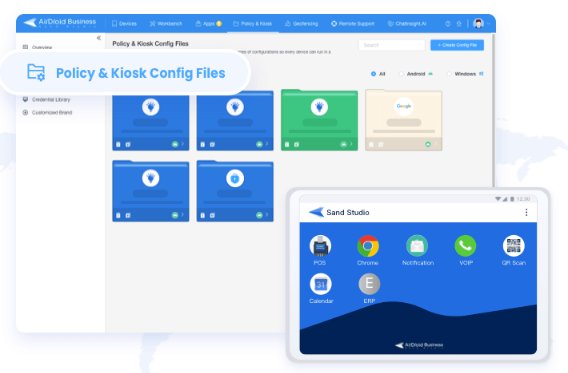
- Kiosk browser supports website whitelisting, address bar control, download policy, scheduled cache clearing, and more.
- Kiosk home screen restrictions cover the Home button, Recent Apps, and other system entry points.
- Single-app mode supports "always running" and restart interval settings for 7x24 deployments.
- Administrators can remotely restart devices, push apps to the foreground, and clear cache, even while in kiosk mode.
4How Do the Top Kiosk Mode Tools Compare?
AirDroid Business
Best for: Digital signage operators, retail IT teams, and organizations managing a mix of Android and Windows unattended devices where remote recovery is as important as the initial lockdown.
Kiosk strengths:
- Browser kiosk: URL whitelisting, address bar suppression, tab limits, download blocking, scheduled cache clearing, and idle refresh are all separate settings — not a single on/off toggle. The most configurable browser kiosk we tested for Android.
- Single-app mode: Includes "always running" and restart interval options, keeping the app in the foreground continuously without manual intervention — built for 7x24 deployments.
- Remote troubleshooting: Remote camera, remote control, and remote observation are all available for unattended device recovery. A patent-protected black screen mode maintains privacy during remote sessions.
- Kiosk monitoring and automation: Kiosk exit status functions as an alert trigger for automated workflows — reboot device, push app to foreground, or switch configuration profile. Real-world usage data shows remote control, observation, and camera are among the highest-frequency operations on the platform.
- Windows kiosk: Single-app and multi-app modes, taskbar and Explorer restrictions, and app whitelisting.
Kiosk limitations: Full navigation bar lockdown and notification shade suppression on Android require Device Owner enrollment.
The Verdict: When a kiosk app crashes overnight, you can connect via the admin app, use remote camera to confirm the physical screen state, relaunch the app, and clear its cache. Start to finish, without anyone going to the location. For distributed signage or unattended terminal fleets, that recovery path changes the operational cost calculation in a real way.
Jamf Pro
Best for: Apple-first organizations including iPad POS deployments, education tablet programs, healthcare kiosks, and any fleet that's predominantly iOS, iPadOS, or macOS.
Kiosk strengths:
- Enrollment: Deep integration with Apple Business Manager and Apple Configurator makes large-scale iOS enrollment reliable and repeatable.
- Single-app mode: Single App Mode at scale via iOS Supervised Mode. iOS also supports Autonomous Single App Mode (ASAM), which can be leveraged for kiosk-style POS and self-service flows.
- App management: Deployment and update workflows are mature and consistent with Apple's software distribution model.
Kiosk limitations:
- Unattended remote troubleshooting (e.g., remote camera or live screen viewing for kiosks) typically requires third party tools; Jamf Pro does not provide native remote camera access or live kiosk screen monitoring.
- iOS kiosk capabilities are bounded by Apple's management framework. Some restrictions available on Android simply aren't available on iOS — that's a platform constraint, not a Jamf shortcoming. Set the right testing scope before you evaluate.
The Verdict: For an all-iPad deployment like hotel check-in screens, museum exhibits, or pharmacy consultation kiosks, Jamf is the most reliable option on this list. The moment your fleet includes Android or Windows devices alongside iOS, you're managing two separate toolchains, and that operational overhead compounds at scale.
Microsoft Intune
Best for: Organizations running primarily Windows terminals with a Microsoft-centric identity and collaboration stack, including Azure AD, Microsoft 365, and Conditional Access policies.
Kiosk strengths:
- Windows Assigned Access: Native single-app and multi-app kiosk configuration without additional tools.
- Policy integration: Conditional Access and Azure AD enable identity-aware kiosk policies — well-suited for organizations already running the Microsoft stack.
- Operational simplicity: Reduces the number of management consoles for teams already using Microsoft 365 and Intune together.
Kiosk limitations:
- Kiosk behavior can vary by Windows version, device form factor, and identity architecture — test on your actual hardware, not just a standard enterprise PC.
- No native remote camera or kiosk status monitoring. Remote troubleshooting requires separate tooling (Quick Assist, TeamViewer, etc.).
- Browser kiosk depth is limited compared to purpose-built tools.
- Android kiosk is supported via Android Enterprise but less fully featured than dedicated Android MDMs.
The Verdict: A reasonable path if your terminals are Windows-based and your team already lives in the Microsoft stack. If your fleet is Android-heavy, or if you need native remote recovery for unattended devices, you'll need to add separate tooling on top of what Intune provides.
SOTI MobiControl
Best for: Industrial and field device deployments including rugged Android handhelds, vehicle-mounted terminals, warehouse scanners, and any environment with high device diversity and non-standard hardware configurations.
Kiosk strengths:
- Hardware compatibility: Long track record with ruggedized Android hardware and non-standard device form factors.
- Peripheral management: Strong industrial peripheral support—especially when combined with SOTI’s broader suite (e.g., SOTI Connect for printer management) and OEM integrations.
- Device diversity: Manages different OS versions, manufacturers, and hardware configurations within a single fleet.
Kiosk limitations:
- Complexity and pricing fit large enterprise deployments better than SMB or mid-market teams.
- Steeper policy configuration learning curve than most tools on this list.
- No native remote camera for viewing the physical environment around an unattended device.
- Some failure scenarios on unattended screens may still require on-site intervention.
The Verdict: Test against a real warehouse PDA or vehicle-mounted terminal: lock it to the inventory app, simulate a crash, and validate whether your team can typically recover it remotely (e.g., relaunch the app / reapply policies) and push configuration updates without a field visit. SOTI handles the industrial complexity well. The question is whether the implementation investment matches your team's size and capacity.
ManageEngine MDM Plus
Best for: Small-to-mid-size IT teams that need one platform covering multiple device types with standardized management workflows and a mid-market price point.
Kiosk strengths:
- Cross-platform coverage: Android, iOS, Windows, and macOS from a single console.
- Branding: Kiosk launcher with customization options for wallpaper, icons, and layout.
- Accessibility: Reasonable kiosk policy breadth for the price tier — a good fit for teams that don't need the deepest feature set on any single platform.
Kiosk limitations:
- Browser kiosk controls are relatively basic—URL whitelisting and auto-refresh/clear cache are available, but advanced controls such as download restriction and tab/address-bar management are limited compared to purpose-built kiosk tools.
- Exit bypass prevention and auto-resume/auto-recovery capabilities are more basic than some dedicated kiosk-first MDMs.
- Feature depth varies significantly between platforms. iOS kiosk and Android kiosk are not equivalent in capability.
The Verdict: Run the same test on both Android and iOS: configure a web kiosk, try to exit through a download dialog, simulate an app crash, and check auto-recovery. The platform gaps become clear within the first hour. For digital signage operators, the key question is whether you can relaunch a crashed playback app without going to the location.
5Which Tool Is Right for Your Situation?
Digital Signage and 7x24 Unattended Screens
Priority order: stability and self-recovery > remote troubleshooting > monitoring and alerts.
Verify: Can the app relaunch automatically after a crash? Can you remotely view the screen and push the playback app back to the foreground? Does the platform alert you when a device exits kiosk mode and respond automatically?
AirDroid Business covers this as a connected loop: single-app stability, remote control/camera/observation, kiosk status alerting, and automated recovery workflows.
Self-Service Web Kiosks and Ordering Terminals
Priority order: browser whitelist and download/cache policy > exit controls > system entry blocking.
Go beyond "does it support URL whitelisting." Test specifically: Is the address bar hidden? Are additional tabs blocked? How are downloads handled? Is there scheduled cache clearing between sessions?
AirDroid Business has explicit configuration items for each of these on Android.
Mixed Android and Windows Fleets
Priority order: cross-platform policy consistency > unified console > bulk recovery actions.
The real challenge isn't whether each platform can be locked — it's whether your team can manage both with one operational model. Two toolchains mean two alert systems, two recovery procedures, and twice the training overhead.
AirDroid Business supports Android and Windows kiosk from a single console with consistent remote troubleshooting across both platforms.
AirDroid Business - Best for Mixed Android and Windows
AirDroid Business supports Android and Windows kiosk from a single console with consistent remote troubleshooting across both platforms.
Cross-Border or Low-Connectivity Sites
Priority order: offline/online alerting > remote troubleshooting efficiency > staged rollout controls.
Check whether the platform queues alerts during offline periods, whether remote sessions work on slow connections, and whether app updates can be staged to a subset of devices before fleet-wide rollout.
6What Do You Need Before Deploying Kiosk Mode?
Pre-Launch Checklist
1. Device and scenario inventory
- Document your Android/Windows/iOS split across the fleet
- Identify which devices are unattended, which face the public, and which need on-site maintenance access
2. Enrollment method selection (this directly determines which policy features are available)
- Android: Device Owner / Android Enterprise (including afw#setup) / Zero-Touch / Samsung KME
- iOS: Apple Business Manager / Apple Deployment Enrollment
- Windows: Group Policy baseline recommended for fleet consistency
3. Policy constraints documentation
- Before rollout, identify which features require specific enrollment modes and document the limitations in your implementation plan
4. Approved app and URL list
- App package names or bundles for single/multi-app kiosk
- Domain and URL rules for web kiosk, including subdomains and paths that need to be explicitly allowed or blocked
5. Exit mechanism configuration
- Set exit PIN or password policy
- Decide whether temporary maintenance exit is needed and configure it before devices go to their locations
6. Remote support procedure
- Define who handles remote kiosk recovery
- Confirm whether black screen mode is needed for privacy during remote sessions in public-facing locations
- Define the escalation path to on-site support when remote recovery fails
7. Staging and pre-launch validation
- Test the complete kiosk lock, exit bypass attempts, app crash recovery, and reboot behavior on a staging device before fleet rollout
Post-Launch Operations Checklist
Weekly
- Review kiosk status alerts and offline device counts
- Spot-check content on a sample of screens
- Check for any logged exit attempts or policy violations
Monthly
- Verify app versions are consistent across the fleet
- Review exit attempt logs for patterns that might indicate configuration gaps
- Run a remote session test on a sample device to confirm the recovery capability is still working
- Review and adjust alert thresholds based on operational experience
7Conclusion
The most common mistake in kiosk software selection is evaluating the lockdown capability and skipping the recovery scenario. A tool that locks a device reliably but has no remote recovery, no kiosk status monitoring, and no automated response to failures will cost more in operational overhead than you saved by picking it.
For IT managers and digital signage operators, the most reliable way to choose is to run a hands-on proof of concept using the scorecard in this guide. Work through each dimension: web kiosk, exit bypass resistance, single-app self-recovery, remote troubleshooting path, kiosk status alerting, and automated response. Run it on the actual devices and enrollment setup you plan to use in production.
The tool that passes that test on your hardware, in your enrollment environment, is the right one for your fleet.
Next Step
If you're managing Android or Windows kiosk devices and want to see AirDroid Business's browser controls, kiosk status alerting, and remote recovery capabilities in your own environment, you can start a free trial at airdroid.com/business.


Leave a Reply.