What Is Classroom Device Management? A Guide for School IT
Two weeks before school starts, you have 100 tablets to configure, apps to install, and settings to lock down. The devices need to be ready before teachers walk in. If you're the only person responsible for all of this, you already know how fast things can go wrong.
This guide covers the biggest classroom device management challenges schools face, what to look for in an MDM solution, and how AirDroid Business helps IT coordinators manage Android devices without a large team or a technical background.
- What is classroom device management?
- Classroom device management refers to the use of a mobile device management (MDM) system to control, configure, and monitor the devices students and staff use in school. It allows IT coordinators to:
1. Deploy apps across all devices at once
2. Lock devices to specific apps or websites
3. Filter web content
4. Troubleshoot problems remotely - The goal is to keep devices focused on learning while reducing the time IT staff spend on day-to-day maintenance.
1What makes classroom device management so challenging for schools?
1. The pressure of back-to-school deployment
Every device needs to be configured before the first day of class. That means installing the right apps, setting permissions, and locking down settings, all within one to two weeks. Without a bulk deployment tool, you're doing the same thing manually on every single device. On 100 devices, that's not a workflow. It's a full-time job.
2. Students tamper with device settings
Take a Samsung tablet fixed to the entrance of a senior classroom, running a sign-in app for attendance. Any student walking past can tap on it. In the few minutes between classes, a student can exit the app, go into system settings, and change network configurations. By the time you find out, the device is no longer working as intended. Without a lockdown in place, it will keep happening.
3. Devices spread across classrooms means problems require a physical visit
When a sign-in tablet crashes or a policy stops working, you either fix it remotely or walk to every classroom to check. In a school with multiple buildings and grade levels, a single device issue can take up half your day.
4. Files and apps need to reach every device at once
One performing arts school manages 60 Android phones used to store and play rehearsal music. Every time the setlist changes, staff need to push new audio files to all 60 devices before rehearsal starts. Without a bulk transfer tool, that means 60 manual transfers. App updates create the same problem. On 100 devices, updating one by one is not realistic.
2What should a school MDM solution be able to do?
1. Kiosk mode
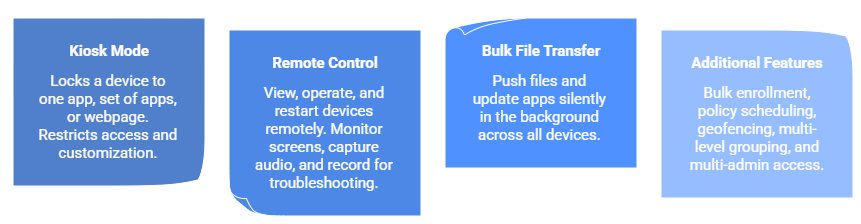
If students have ever exited your sign-in app or changed device settings during passing period, kiosk mode is the fix. It locks a device to one app, a set of apps, or a specific webpage. Students cannot exit, access system settings, or open anything else. You can restrict which websites are accessible, disable the notification bar and system menu, and customize the interface. Only an administrator can exit Kiosk mode. Once it's on, the device does one job and nothing else.
2. Remote control and remote monitoring
When a device crashes or a policy fails, you can view the screen, operate the device, and force a restart directly from the management console, without going to the classroom. You can also monitor the screen in real time, capture audio from the device, and record the screen for troubleshooting. If you need to communicate with whoever is near the device, you can call them directly through the platform and sync text to the device clipboard to pass instructions across.
3. Bulk file transfer and silent app updates
Push files to a specific folder on every device at once, or update apps silently in the background. What used to take hours gets done in a few minutes, with no manual steps on individual devices.
4. Additional features for day-to-day management
Beyond the three core functions above, a solid classroom device management solution should handle bulk enrollment so you can register all devices at once without connecting them to a computer individually. Policy scheduling lets the same device run different configurations at different times. Geofencing triggers automatic actions when a device leaves a set area, useful for lending programs or getting an alert when a classroom device moves off campus. Multi-level grouping and multi-admin access let different staff members manage their own device groups with separate policies, without everyone sharing one account.
3Before the school year starts: a quick setup checklist
- Register all devices into the management console
- Group devices by use case (sign-in terminals, classroom tablets, media devices)
- Push required apps to each group
- Enable Kiosk mode on fixed-use devices
- Configure policy schedules for after-school hours
- Test remote control on a sample of devices
- Set up admin accounts for each staff member who needs access
4Why AirDroid Business is the Right MDM for Schools
There are a lot of MDM platforms out there, but not all of them are built with schools in mind. If you're managing Android devices with a small team and a limited budget, here's why AirDroid Business is worth looking at.
Built for Android
AirDroid Business is purpose-built for Android device management. That means deeper system-level control, more stable feature performance, and fewer compatibility issues compared to MDM platforms that treat Android as a secondary priority. Kiosk mode, remote control, and policy enforcement work reliably on Android devices because the product was designed around them.
No MDM experience needed
The interface is clean and the workflow is logical, so you can get core tasks done without spending hours reading documentation. Enrolling devices, configuring policies, and pushing apps are all straightforward tasks you can complete without prior MDM experience. Most users are up and running within a day.
Comprehensive features at a fraction of the cost
AirDroid Business covers the full range of classroom device management features you'd expect from enterprise MDM platforms, but at a significantly lower price point. There's no need to pay for a bundled package full of features your school will never use. With flexible add-ons, you pay for what you actually need and adjust as your requirements change.
5Conclusion: Start managing your school devices the right way
Classroom device management doesn't have to mean running across campus every time something breaks. With the right MDM solution, you can handle deployments, lockdowns, and troubleshooting from one place, before problems reach the classroom.
Next Step
If you're managing Android devices in a school environment, start a free trial of AirDroid Business today. Or contact our team for a one-on-one setup session built around your school's specific device configuration.


Leave a Reply.