أفضل 3 برامج للتحكم عن بعد من أي جهاز للأندرويد وآيفون
هل سبق لك أن احتجت إلى التحكم في هاتفك الذي يعمل بنظام Android من جهاز آخر؟ مهما كان السبب – ربما للوصول إلى الملفات أو لمساعدة شخص ما عن بُعد – فإن اختيار الأداة المناسبة هو المفتاح.
ستجد الكثير من الأدوات التي تتيح لك القيام بذلك، لكنها تختلف كثيراً في ما تقدمه. هنا، سنغطي كيفية التحكم عن بُعد في هاتف Android الخاص بك، وننظر إلى أدوات مختلفة تناسب احتياجات مختلفة. دعنا نبدأ.
ما الذي تحتاجه للتحضير للتحكم عن بُعد في Android؟
هناك الكثير من التطبيقات التي تتيح لك التحكم عن بُعد في جهاز Android. ولكن بغض النظر عما تحاول القيام به، هناك بعض الأشياء الأساسية التي تحتاج إلى إعدادها أولاً:
كيفية التحكم عن بُعد في هاتف Android
هنا، قمنا بإدراج بعض الأدوات الشائعة للتحكم عن بُعد في هاتف Android الخاص بك، بناءً على ما تتميز به.
| الطريقة | الأفضل من أجل |
|---|---|
| AirDroid Remote Support | الدعم والمساعدة عن بُعد |
| Phone Link | إدارة الأجهزة المتعددة |
| AirDroid Personal | الوصول والإدارة عن بُعد |
| Google Family Link | الرقابة الأبوية |
| Find My Device | تتبع موقع الهاتف وإدارته |
1AirDroid Remote Support
AirDroid Remote Support هو واحد من أفضل التطبيقات للتحكم عن بُعد في هواتف أو أجهزة Android اللوحية. إنه متوافق مع Windows وmacOS وAndroid وiPhone، مما يعني أنه يمكنك الوصول عن بُعد إلى جهاز Android الخاص بك من أجهزة مختلفة. بالإضافة إلى ذلك، يحتوي أيضاً على بعض الميزات الرائعة والمفيدة:
الميزات الرئيسية:
- الوصول غير المراقب: الاتصال بجهاز Android حتى إذا لم يكن هناك أحد.
- كاميرا الواقع المعزز (AR): استخدام كاميرا الجهاز الآخر.
- وضع الشاشة السوداء: جعل شاشة Android معتمة أثناء الوصول إليها.
- البرنامج التعليمي بالإيماءات: توجيه المستخدمين خطوة بخطوة.
- أمان على مستوى رائد في الصناعة: يستخدم ميزات أمان قوية (مثل AES و TLS) للحفاظ على بياناتك آمنة للغاية.
المزايا
- تحكم كامل في شاشة Android من جهاز آخر.
- بدء المكالمة الصوتية تلقائياً يساعد في التواصل في الوقت المناسب.
- العرض عن بُعد مع الوصول إلى الكاميرا/الميكروفون عن بُعد.
العيوب
- خدمة مدفوعة.
- يجب على المستخدم البعيد القبول.
- يتطلب حقوق الوصول إلى الهاتف.
اتبع الخطوات للتحكم عن بُعد في هاتف Android من الكمبيوتر
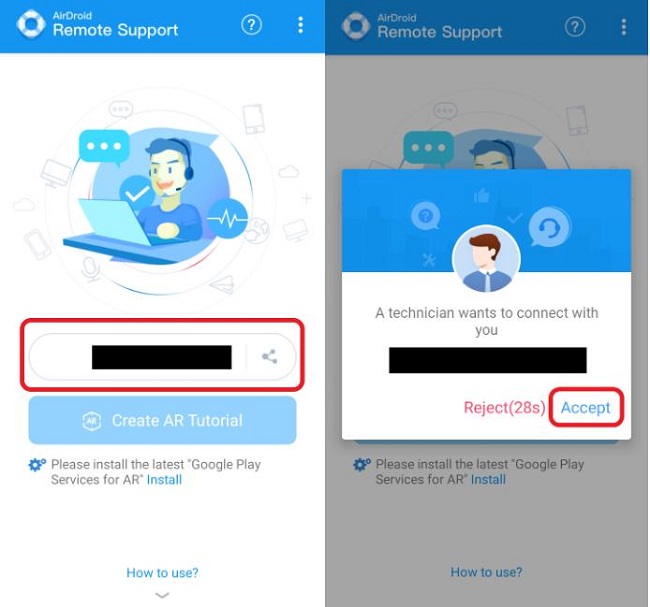
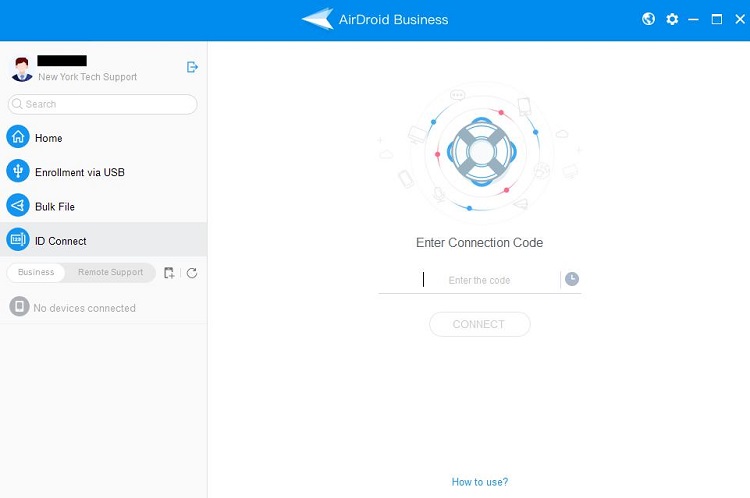
- الخطوة 1.قم بتنزيل وتثبيت AirDroid Remote Support على هاتف Android الذي ستتحكم فيه عن بُعد. ثم قم بتنزيل وتثبيت AirDroid Business على جهاز الكمبيوتر الخاص بك.
- الخطوة 2.قم بتشغيل AirDroid Business على جهاز الكمبيوتر الخاص بك وانتقل إلى الاتصال بالمعرّف. أدخل الرمز المكون من 9 أرقام في AirDroid Remote Support على هاتفك.
- الخطوة 3.انقر على قبول على هاتفك لإنشاء الاتصال.

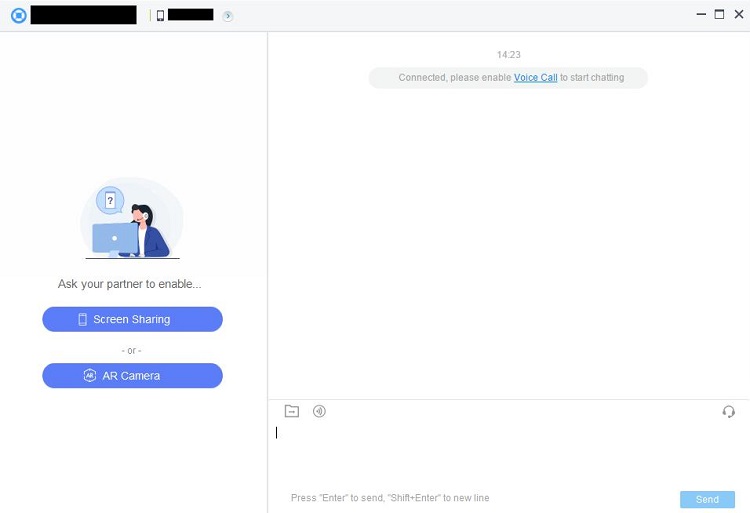
- الخطوة 4.ثم ابدأ التحكم عن بُعد من جهاز الكمبيوتر الخاص بك.
2Phone Link
Phone Link يساعدك على التبديل بين جهاز الكمبيوتر الذي يعمل بنظام Windows وهاتف Android الخاص بك. يمكنك إدارة مهام مثل الإشعارات والرسائل والمكالمات وأحياناً عكس الشاشة من جهاز الكمبيوتر الخاص بك.
الميزات الرئيسية
- استلام وإدارة إشعارات Android على الكمبيوتر.
- إرسال واستلام الرسائل النصية على الكمبيوتر.
- إجراء واستلام المكالمات على الكمبيوتر.
- نقل الصور والملفات بسهولة بين الكمبيوتر والهاتف.
- عكس شاشة هاتف Android إلى جهاز الكمبيوتر الخاص بك (مدعوم على بعض الأجهزة).
المزايا
- مجاني تماماً للاستخدام.
- تكامل عميق مع Windows.
- معالجة فعالة للاتصالات اليومية والإشعارات.
- نقل مناسب وسريع للملفات والصور.
العيوب
- عكس الشاشة غير مدعوم على جميع أجهزة Android.
- لا يوفر إمكانيات تحكم كاملة عن بُعد في Android.
- يعتمد الاتصال على Bluetooth، لذلك لا يمكن أن يكون هاتف Android بعيداً جداً.
خطوات التحكم عن بُعد في هاتف Android من الكمبيوتر عبر Phone Link:
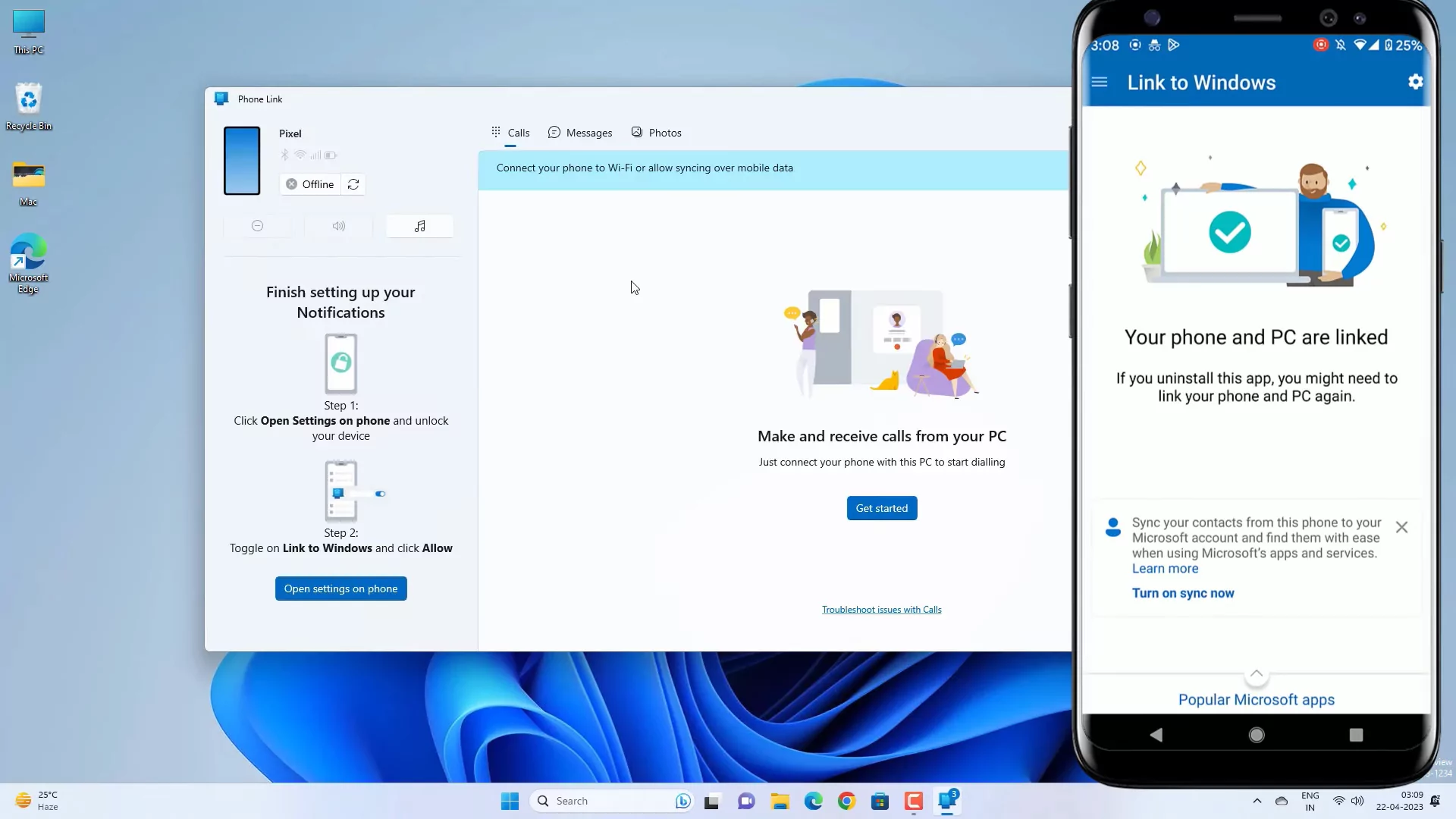
- الخطوة 1.افتح تطبيق Phone Link على جهاز الكمبيوتر الخاص بك واتبع تعليمات الإعداد.
- الخطوة 2.افتح Link to Windows على هاتف Android الخاص بك.
- الخطوة 3.سجل الدخول باستخدام نفس حساب Microsoft المستخدم على جهاز الكمبيوتر الخاص بك.
- الخطوة 4.امسح رمز QR المعروض على جهاز الكمبيوتر الخاص بك للاتصال.
3AirDroid Personal
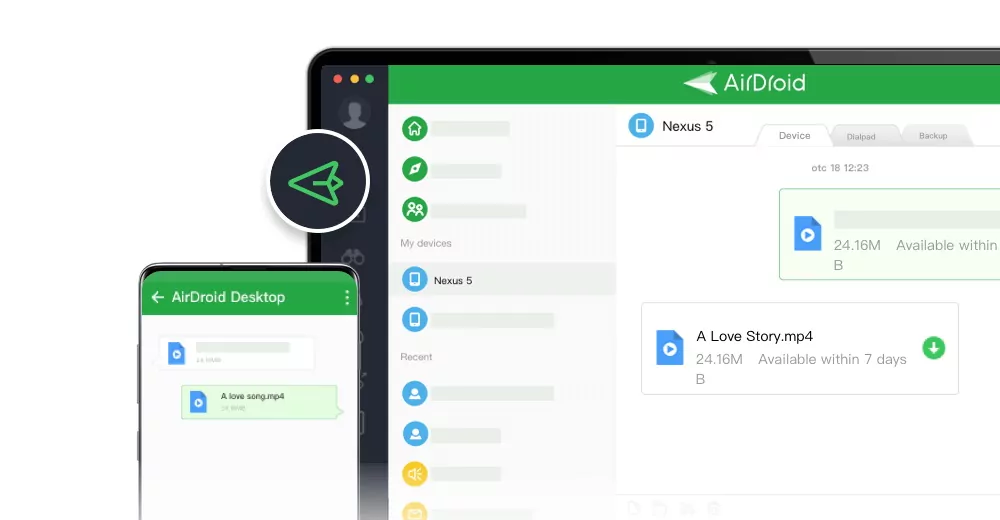
AirDroid Personal يقدم وصولاً وإدارة عن بُعد أكثر شمولاً لهاتفك أو جهازك اللوحي الذي يعمل بنظام Android. يمكنك استخدامه عبر جهاز كمبيوتر أو متصفح ويب أو جهاز محمول آخر. يدعم نقل الملفات وإدارة الإشعارات وعكس الشاشة والتحكم في الجهاز وحتى الوصول إلى الكاميرا والميكروفون.
الميزات الرئيسية:
- نقل الملفات بين الأجهزة المختلفة، مع دعم السحب والإفلات.
- استلام والرد على رسائل SMS، وإدارة الإشعارات.
- الوصول عن بُعد إلى كاميرا الجهاز وميكروفونه.
- عكس شاشة الجهاز عن بُعد.
- عرض حالة الجهاز ومستوى البطارية ومساحة التخزين وغيرها من المعلومات.
المزايا
- يوفر وظائف وصول وتحكم شاملة عن بُعد.
- يدعم طرق اتصال متعددة (الشبكة المحلية، الإنترنت).
- دعم متعدد المنصات (Windows، macOS، الويب، Android، iOS).
العيوب
- تتطلب الميزات المتقدمة اشتراكاً مدفوعاً.
خطوات التحكم عن بُعد في هاتف Android عبر AirDroid Personal:
- الخطوة 1.قم بتنزيل وتثبيت تطبيق AirDroid Personal على هاتفك وقم بتسجيل الدخول باستخدام حساب AirDroid الخاص بك.
- الخطوة 2.افتح عميل AirDroid لسطح المكتب على جهاز الكمبيوتر الخاص بك، أو انتقل إلى الإصدار الويب وقم بتسجيل الدخول إلى نفس الحساب.
- الخطوة 3.يمكنك منح AirDroid الأذونات اللازمة على هاتفك وفقاً لاحتياجاتك في المرة الأولى.
- الخطوة 4.بمجرد الاتصال، يمكنك إدارة والتحكم في جهاز Android الخاص بك عن بُعد.
4Google Family Link
يساعد Family Link من Google الآباء في إدارة استخدام أطفالهم لأجهزة Android. يسمح للآباء بالتحكم عن بُعد ومراقبة الاستخدام، وتحديد وقت الشاشة، وإدارة تنزيلات التطبيقات، وتتبع موقع الجهاز.
ملاحظة: إذا لم يكن لدى طفلك حساب Google، فستحتاج إلى إنشاء حساب مُدار بواسطة Family Link. إذا كان لديهم حساب بالفعل، يمكنك إضافته إلى مجموعة العائلة في Family Link أثناء الإعداد.
الميزات الرئيسية:
- تتبع موقع جهاز طفلك.
- تعيين حدود وقت الشاشة وجداول وقت النوم للجهاز عن بُعد.
- الموافقة على تنزيلات ومشتريات تطبيقات طفلك أو حظرها عن بُعد.
- قفل جهاز طفلك عن بُعد.
المزايا
- مجاني للاستخدام.
- تكامل عميق مع حسابات Google ونظام Android.
- يركز على الرقابة الأبوية.
العيوب
- مخصص بشكل أساسي لإدارة أجهزة القاصرين، وليس للتحكم الشخصي عن بُعد.
- يحتاج الطرف المُدار (الطفل) إلى الموافقة وإكمال الإعداد.
خطوات التحكم عن بُعد في هاتف Android عبر Google Family Link:
- الخطوة 1.قم بتنزيل وتثبيت تطبيق Family Link على جهاز الوالدين.
- الخطوة 2.على جهاز Android الخاص بطفلك، اتبع التعليمات الموجودة في تطبيق Family Link لربط الجهاز بحساب الوالدين.
- الخطوة 3.امنح إذن Family Link على جهاز طفلك.
- الخطوة 4.بعد الربط، يمكنك إعداد وقت الشاشة وقيود التطبيقات وقفل جهاز Android الخاص بالطفل عن بُعد.
5Find My Device
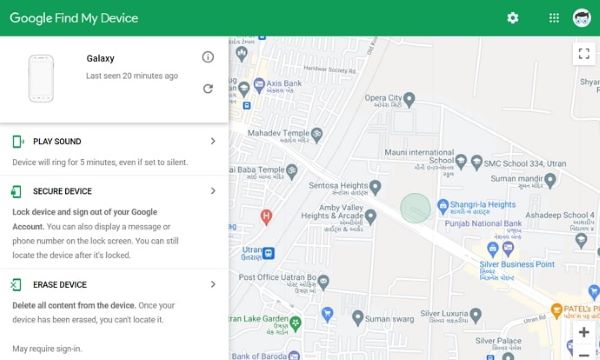
يساعدك Find My Device من Google في تحديد موقع هاتف Android الخاص بك عن بُعد أو قفله أو مسحه إذا فُقد أو سُرق. يحمي خصوصيتك من خلال تقديم إدارة عن بُعد أساسية في حالات الطوارئ، على الرغم من أنه ليس للتحكم اليومي عن بُعد.
الميزات الرئيسية:
- عرض الموقع الحالي للجهاز على الخريطة.
- جعـل الجهاز يرن بأعلى مستوى صوت لمدة خمس دقائق (حتى إذا كان مضبوطاً على الصامت).
- قفل الجهاز عن بُعد وعرض رسالة ورقم هاتف للاتصال على شاشة القفل.
- مسح جميع البيانات على الجهاز عن بُعد.
المزايا
- مجاني ومثبت مسبقاً على معظم أجهزة Android.
- يوفر ميزات عن بُعد عند فقدان/سرقة الجهاز.
- متكامل مع حسابات Google.
العيوب
- لا يقدم تحكماً يومياً عن بُعد.
- يحتاج الجهاز إلى أن يكون متصلاً بالإنترنت ومفعّلة خدمات الموقع ليعمل بشكل صحيح.
- مسح البيانات هو عملية لا رجعة فيها.
خطوات التحكم عن بُعد في هاتف Android عبر Find My Device:
- الخطوة 1.تأكد من أن جهازك مسجل الدخول إلى حساب Google وأن خدمات الموقع مفعّلة.
- الخطوة 2.قم بزيارة الإصدار الويب من Find My Device من Google أو استخدم تطبيق Find My Device وقم بتسجيل الدخول باستخدام نفس حساب Google.
- الخطوة 3.بمجرد تسجيل الدخول، ستحاول الخدمة تحديد موقع جهازك على الخريطة وتقديم خيارات لتشغيل صوت أو قفل الجهاز أو مسح بياناته.
نصائح لتجربة أفضل للتحكم عن بُعد في Android
قد يكون التحكم عن بُعد في Android متعثراً في بعض الأحيان ويسبب لك الإحباط. ومع ذلك، هناك نصائح لتحسين تجربة التحكم عن بُعد في Android. فيما يلي بعض الطرق الشائعة الاستخدام التي يمكن أن تساعدك في تحسين تجربة الوصول عن بُعد لديك.
الخاتمة
في هذه المقالة، نظرنا في عدة طرق بسيطة للتحكم عن بُعد في هاتف/جهاز Android. كل طريقة من هذه الطرق مريحة بطريقتها الخاصة. ركز على احتياجاتك، وتذكر أنه يمكنك استخدام عدة خيارات في وقت واحد.
إذا كانت لديك احتياجات للدعم عن بُعد، فإننا نوصي بشدة باستخدام AirDroid Remote Support. لا تتردد في بدء النسخة التجريبية المجانية الآن.
هل لا تزال لديك أسئلة أو تعرف طرقاً أكثر ملاءمة للتحكم عن بُعد في هواتف Android؟ اكتب في التعليقات - سأكون سعيداً بآراء مثيرة للاهتمام!
الأسئلة الشائعة حول جهاز التحكم عن بعد لهاتف أندرويد


اترك ردًا.