Android TV Software for Enterprise Deployment & Management
Beyond the Living Room: Challenges and Opportunities in Commercial Environments
Android TV and Google TV are rapidly moving beyond consumer electronics. They are increasingly chosen for commercial deployments in hotels, retail digital signage, corporate meeting rooms, and educational settings. However, deploying these devices at scale requires solutions for centralized management, robust security locking, unified configuration, and stable, reliable operation.
This guide systematically explores how software and specialized management tools address these critical enterprise needs.
1Mass Deployment, Unified Configuration, and Security Locking
This section explains how organizations can achieve rapid, consistent deployment of Android TV devices while establishing essential baseline security.
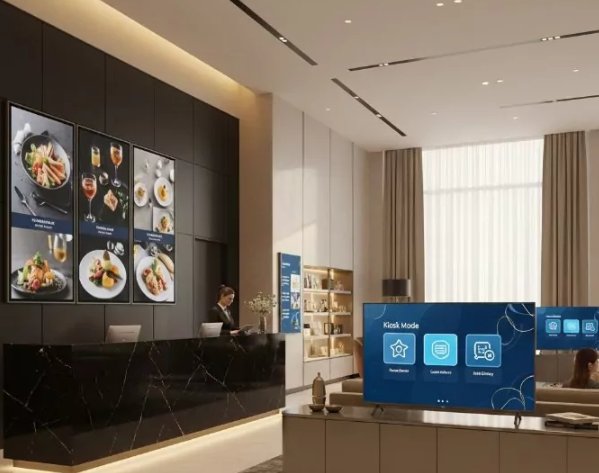
1.What is Android TV Enterprise Mode?
Android TV Enterprise Mode is a specialized configuration for commercial use, typically activated by an MDM solution. It transforms a consumer device into a centrally managed business tool by enabling features such as:
- Centralized Control: Remote management by IT admins.
- Feature Restriction: Disabling consumer apps like the Play Store.
- Kiosk Locking: Locking the device to specific business apps.
- Custom Interface: Enforcing a branded or simplified launcher.
2. How to Achieve Device Mass Enrollment and Unified Configuration
The following methods ensure efficiency and consistency during large-scale setup:
- Zero-touch Enrollment (ZTE): The highly recommended method. Devices are pre-configured at the factory or reseller, allowing them to automatically register with the MDM platform and download all policies upon first connection.
- MDM Enrollment Codes/QR Codes: Devices can be manually registered by entering a provided code or scanning a QR code during the setup process.
- Unified Configuration of Basic Settings: The MDM platform remotely pushes policies to consistently configure essential settings across the fleet:
- Network: Deploy Wi-Fi settings (including hidden SSIDs and certificates).
- Localization: Uniformly set the system language, time zone, and display preferences (e.g., sleep timers, brightness).
3. How to Implement Security Locking and Restrictions (Kiosk Mode)
Kiosk Mode is a critical function for restricting a device to a specific commercial purpose, ensuring only authorized applications run:
- Single-App Lock: Locks the device to one application (e.g., a meeting room scheduler or digital signage player).
- Multi-App Lock: Permits users to switch between a small list of pre-approved applications, while disabling all other features.
- Anti-Sideloading and Restrictions: MDM policies enforce deep security measures:
- Forcefully disable app installation from "unknown sources."
- Restrict or disable USB debugging (ADB) functionality.
- Limit access to the Google Play Store, permitting only applications on an authorized whitelist.
2Application Lifecycle Management and Custom Branding
This part covers how to securely install, update, and uninstall enterprise applications, along with enforcing a consistent brand identity on the interface.
1. Secure Batch Installation and Uninstallation of Enterprise Apps
To move away from the security risks of sideloading, organizations should use MDM:
- Secure Batch Installation: Utilize the MDM's Enterprise App Store or Remote Silent Push function. The administrator uploads a custom APK, and the MDM pushes it to target devices in the background as a mandatory policy, requiring zero user intervention.
- Remote Uninstallation and Maintenance: MDM allows administrators to execute remote commands across the fleet:
- Silently uninstall unwanted applications.
- Remotely clear the cache and data for specific or all applications—an effective solution for device slowdowns or application errors.
2. Managing System Features and Software Updates
Centralized control over the system's core functionality and maintenance:
- Feature Disabling/Hiding: MDM uses Android Enterprise APIs to hide or disable pre-installed consumer apps (e.g., YouTube, Netflix) and restrict system functions (e.g., Cast functionality, the notification bar, and certain settings menus) to ensure commercial-only use.
- Operating System Update Control (OTA): MDM offers granular control over OS updates:
- Update Deferral: Blocks devices from installing updates immediately, allowing the IT team time for thorough compatibility testing.
- Time Window: Sets a specific time for updates (e.g., 2:00 AM) to avoid disruption during peak operational hours.
- Silent Update: Forces updates to execute in the background without requiring user interaction.
3. Enforcing a Unified Brand Interface or Custom Launcher
Branding is managed by controlling the user interface (UI):
- Installation and Policy: MDM allows the administrator to silently install a custom-developed or third-party launcher.
- Enforcement: Device policy is then used to set this launcher as the default interface—and in Kiosk Mode, the only accessible interface—guaranteeing that all device UIs are consistent and adhere to brand standards.
3Remote Operations & Performance Tuning
This section is aimed at advanced IT and operations staff, focusing on deep remote control, troubleshooting, and proactive device maintenance.
1. How MDM Replaces ADB for Remote Control and Diagnostics
Advanced MDM solutions provide a Remote Command Line Interface (Remote Shell), effectively eliminating the need for physical ADB access:
- Remote Execution: Operations staff can remotely execute most common ADB Shell commands (e.g., dumpsys, logcat, input text) for in-depth troubleshooting and system configuration adjustments.
- Remote Screen Viewing/Control (Remote View): A core feature allowing administrators to view the device's screen in real-time to monitor application behavior. It also supports sending input commands to actively control and debug the device.
2. Monitoring Device Health and Responding to Incidents
MDM continuously collects crucial telemetry data to monitor device health:
- Telemetry Monitoring: Tracks key metrics like CPU/memory usage, storage space, app crash logs, network connection status, and, on supported devices, power information.
- Alert Mechanism: By setting alert thresholds, IT staff are immediately notified the moment a device goes offline or performance begins to decline.
- Security Incident Response: If a device is lost or compromised, MDM provides powerful security tools:
- Remote Lock: Instantly locks the device screen.
- Remote Wipe (Factory Reset): Restores the device to factory settings, permanently clearing all user and sensitive application data to prevent data breaches.
3. How to Resolve Lags and Conduct Performance Tuning
Proactive strategies and system tweaks are essential for optimal performance:
- Remote Maintenance Strategy: Implement a policy for scheduled remote reboots (e.g., weekly) to free up system memory, or use MDM commands to regularly clear application caches.
- Manual/System Optimization: For individual or non-MDM managed devices:
- Use the native system feature "Running Services" (found in Developer Options) to identify and stop high-resource background applications.
- Under-the-Hood Tuning: By enabling Developer Options, you can adjust the following three settings to 0.5x or Off to reduce system animation rendering time and significantly increase UI responsiveness:
- Window animation scale
- Transition animation scale
- Animator duration scale
Elevate your Android TV deployment to the next level.
AirDroid Business is engineered for the enterprise, offering powerful Zero-touch Enrollment, Kiosk Mode locking, and remote troubleshooting capabilities. Choose AirDroid Business to achieve secure, efficient, and fully customized centralized management of your Android TV fleet.
4Conclusion: Building an Efficient, Secure Android TV Solution
The massive potential of Android TV in the enterprise sector is fundamentally unlocked by professional tools, particularly MDM solutions. From Zero-touch mass deployment and Kiosk mode locking to remote diagnostics and performance tuning, enterprise software management provides unmatched control, security, and operational efficiency. By combining MDM's centralized power with smart system adjustments, organizations can build a highly efficient, secure, and fully customized Android TV environment.


Leave a Reply.